
How to Track WordPress AI Token Usage by Plugin: Access Control, Audit Logs, and Cost Visibility
WordPress 7.0 makes AI much easier to add. A site administrator can connect providers such as OpenAI, Anthropic, or Google, and plugins can use the built-in WordPress AI Client instead of building their own provider integration.
That convenience creates a new operational problem:
Once several plugins can use the same site-level AI connection, how do you know which plugin is making calls, which model it is using, who triggered it, how many tokens it consumed, and whether that plugin should have AI access at all?
Without that visibility, AI can be "working" while your team has no practical answer for an unexpected increase in token usage, a background task that calls a model repeatedly, a plugin update that adds an AI workflow, or a prompt that should never have left WordPress.
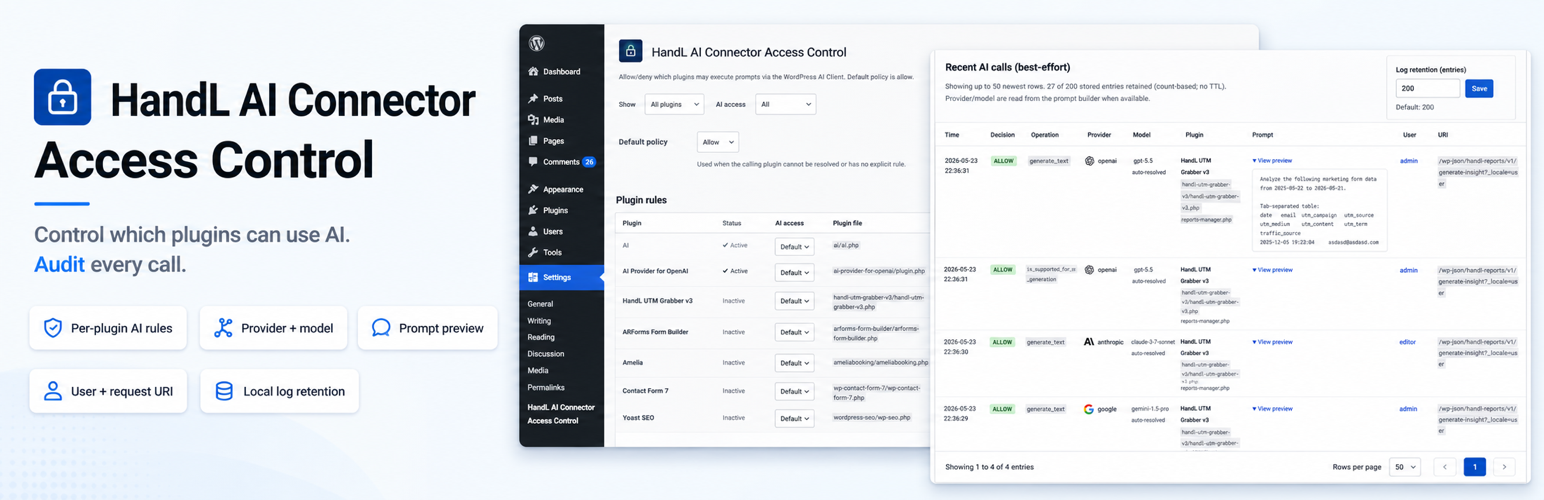
HandL AI Connector Access Control is a free WordPress plugin built for that gap. It can observe WordPress AI Client calls, attribute them to the calling plugin on a best-effort basis, record provider/model and token usage, apply per-plugin allow or deny rules, and stop AI Client calls with an emergency kill switch.
If you cannot tell which WordPress plugin is using AI tokens
- Your OpenAI, Anthropic, or Google usage increases, but you cannot connect the activity to a specific WordPress plugin.
- Several plugins share the WordPress AI Client, and the provider invoice only shows account-level or project-level usage.
- An AI feature is enabled, but nobody knows whether it runs only on button clicks, through REST requests, during cron jobs, or in the background.
- You need to know which provider, model, operation, user, request URI, and prompt were involved.
- You want to test a deny policy without breaking production features immediately.
- You need a fast way to block AI calls during a cost spike, privacy concern, compromised workflow, or plugin incident.
- You assumed WordPress would show a per-plugin AI usage dashboard automatically, but you still do not have one.
Connecting an AI provider is only the beginning. A production WordPress site also needs attribution, access policy, usage visibility, and an incident response path.
The short answer
WordPress 7.0 exposes the technical hooks needed to prevent prompts and inspect completed AI results, including token metadata. It does not automatically turn those hooks into a per-plugin governance dashboard for every site.
HandL AI Connector Access Control uses those official WordPress hooks to add the missing operating layer:
- Learn mode records calls without blocking them.
- Caller attribution attempts to identify the plugin and source file behind each call.
- Audit logging records the operation, provider, model, prompt preview, user, request URI, decision, and token counts when available.
- Usage insights aggregate calls and token totals by plugin, provider, model, and operation.
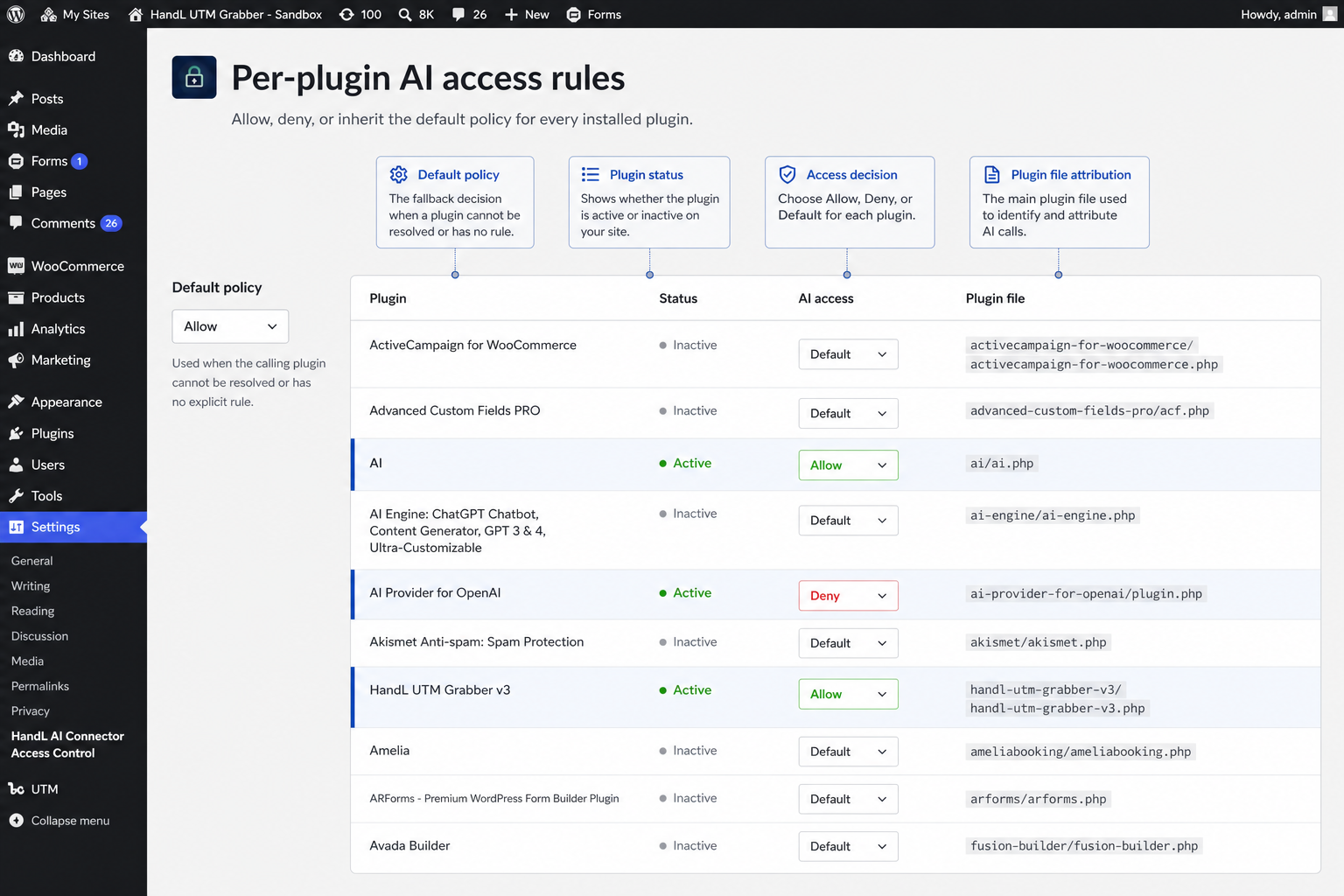
- Per-plugin rules allow, deny, or inherit the default policy.
- An emergency kill switch blocks all WordPress AI Client calls except explicit plugin exceptions.
This gives an administrator a practical answer to the question that matters: who used AI, through what path, with which model, and should it be allowed to happen again?
The plugin provides usage and governance visibility, not an exact provider invoice. Model prices vary, token categories differ, image and media generation may be priced differently, and negotiated rates or free tiers may apply. Reconcile the local audit trail with the billing and budget controls in your AI provider account.
What changed in WordPress 7.0
WordPress 7.0 introduced two pieces that change how plugins can use AI.
The WordPress AI Client
The built-in AI Client gives plugins a provider-agnostic PHP API. A plugin can describe the prompt and model requirements, then WordPress handles provider selection, transport, errors, and normalized results.
The recommended entry point is wp_ai_client_prompt(). Completed result objects can include:
- input or prompt token usage;
- output or completion token usage;
- optional thinking token usage;
- provider metadata;
- model metadata;
- generated text, images, speech, video, or other supported output.
WordPress also exposes wp_ai_client_prevent_prompt. When this filter prevents a request, WordPress does not attempt the provider call. Supported checks return false, and generation methods return a WP_Error.
The Connectors API
The Connectors API gives WordPress a standard place to register external services and manage credentials. WordPress 7.0 initially focuses on AI providers, with official connector support for OpenAI, Anthropic, and Google.
This means a feature plugin no longer needs to own a separate API-key screen. It can use the provider connection configured at the site level.
That is cleaner for developers and administrators, but it changes the control boundary. A provider key is no longer only a credential. It is also a spending boundary, a data-sharing boundary, and a permission boundary shared by every compatible feature plugin.
The visibility gap: enabled does not mean governed
Imagine a WordPress site with four AI-enabled plugins:
| AI workflow | How it may run | What can go wrong without tracking |
|---|---|---|
| SEO content assistant | Editor button, bulk action, scheduled post | Hundreds of prompts can be generated during a bulk workflow. |
| Image generator | Editor action or automatic featured image | A media model may use a different pricing unit than text tokens. |
| Support or sales chatbot | Public REST endpoint or frontend request | Repeated, automated, or abusive requests can create unexpected usage. |
| Reporting assistant | Cron, webhook, dashboard request | A retry loop or frequent schedule can make calls when no administrator is watching. |
The AI provider may show total usage. The individual plugin may show that its feature completed. Neither view necessarily answers all of these questions:
- Which WordPress plugin initiated the call?
- Was the plugin active or newly updated?
- Which WordPress user triggered it?
- Did the call originate from an admin screen, REST route, cron path, or public URI?
- Which provider and model were actually selected?
- Was the model explicitly requested or inferred from available models?
- How many input and output tokens were reported?
- Was the prompt allowed, denied, or only observed in learn mode?
- What rule should apply the next time the same plugin calls AI?
This is an observability problem before it becomes a billing problem.
WordPress AI governance, LLM observability, and AI FinOps in plain English
The industry uses several overlapping terms for this problem:
| Term | What it means on a WordPress site |
|---|---|
| AI governance | Deciding which plugins and users may access AI, under which rules, with an auditable decision trail. |
| LLM observability | Seeing calls, models, prompts, token usage, failures, and request context instead of treating AI as a black box. |
| AI FinOps | Connecting technical usage to cost accountability, budgets, anomalies, and provider billing. |
| Prompt audit logging | Retaining enough prompt and request context to investigate what happened without keeping unnecessary sensitive data. |
| Shadow AI | AI usage that exists outside the site's approved inventory, policy, or monitoring process. |
On WordPress, these are not abstract enterprise concepts. They become practical questions such as which plugin used the shared OpenAI key, why did token usage jump, and can I stop that plugin without disabling every approved AI feature?
How HandL AI Connector Access Control works
The plugin sits at the WordPress AI Client policy point, not between WordPress and every internet request.
WordPress plugin
      |
      v
wp_ai_client_prompt()
      |
      v
HandL policy check: allow, deny, learn, or kill switch
      |
      +---- denied ----> no AI provider call
      |
      v
OpenAI / Anthropic / Google / another registered provider
      |
      v
Result metadata and token usage recorded locally when available
At the start of a call, the plugin listens to wp_ai_client_prevent_prompt. It inspects the PHP call stack to identify the likely calling plugin, evaluates the active policy, and records what happened when logging is enabled.
After an allowed generation completes, it listens for wp_ai_client_after_generate_result and attempts to attach input, output, total, and optional thought-token usage to the matching audit row.
That design has an important benefit: a denied prompt is stopped before the AI provider call is attempted.
What the plugin can show you
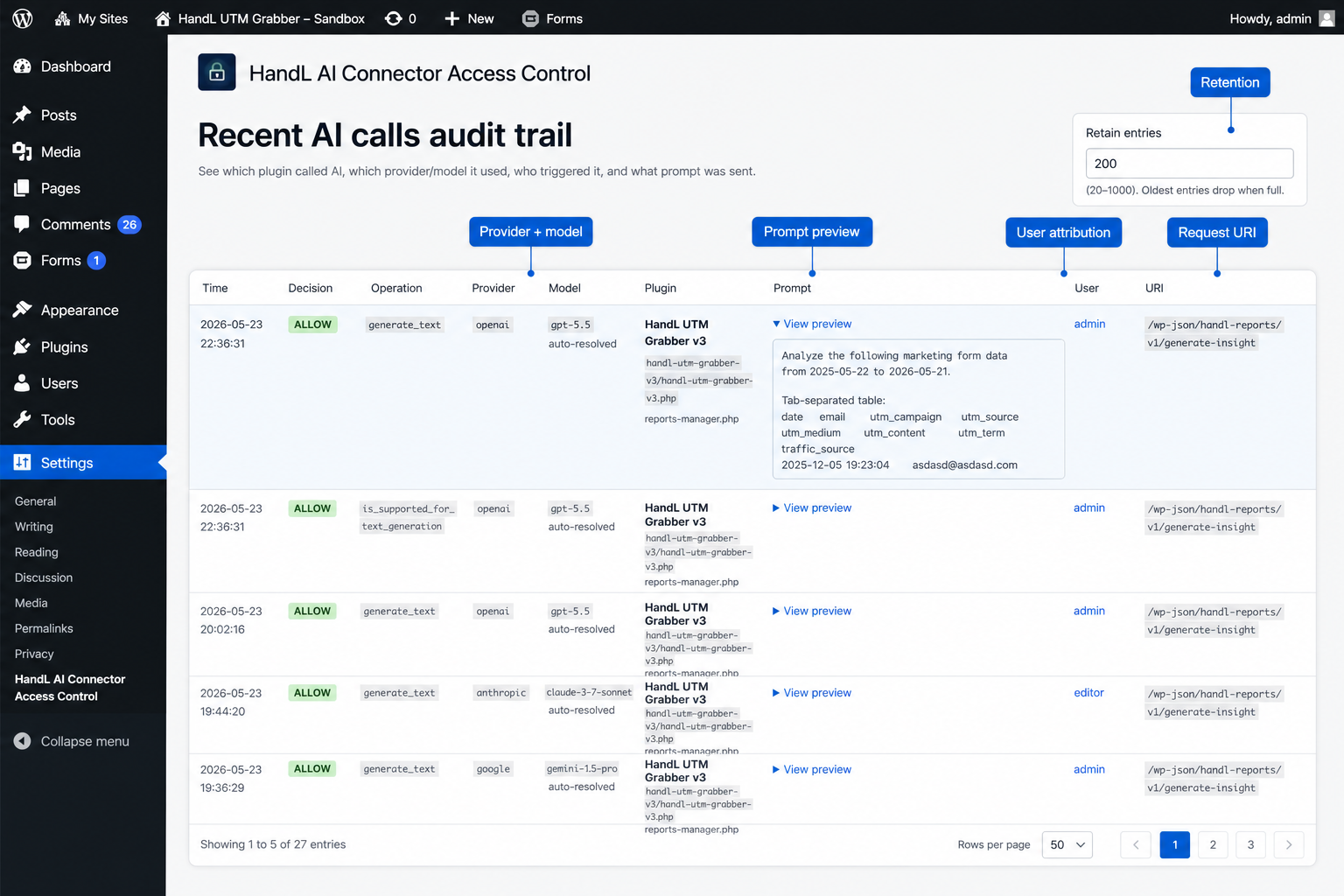
When logging is enabled, the recent-call audit trail can retain:
| Audit field | What it helps answer |
|---|---|
| Timestamp | When did the AI activity occur? |
| Decision | Was the call allowed or denied? |
| Would-enforce decision | What would the configured policy do after learn mode is disabled? |
| Operation | Was this generate_text, generate_image, a support check, or another AI Client operation? |
| Provider | Did WordPress use OpenAI, Anthropic, Google, or another provider? |
| Model | Which model was selected or inferred? |
| Input tokens | How large was the prompt or input according to the result metadata? |
| Output tokens | How much output did the model generate? |
| Total and thought tokens | What total usage did the result report, including thinking tokens when available? |
| Calling plugin | Which installed plugin most likely initiated the request? |
| Source file | Which PHP file appeared to originate the call? |
| Prompt preview | What did the beginning of the prompt contain? |
| Generation config | Were settings such as maximum tokens, temperature, or top-p available? |
| Current user | Which logged-in WordPress user was associated with the request? |
| Request URI | Which admin page, REST route, or site path was active? |
The prompt preview is truncated to 240 characters. Selected generation settings and a shortened system instruction may also be retained on a best-effort basis.
The important phrase is best effort. Some providers, operations, and call paths expose more metadata than others. The dashboard should be treated as an operational trail, not forensic certainty.
Usage insights: turn token rows into a useful answer
Individual audit rows are useful for debugging one call. The Usage insights tab is useful when the question is bigger:
- Which plugin made the most calls?
- Which provider handled the most WordPress AI traffic?
- Which model produced the highest retained token total?
- Which operation created the largest single call?
- What were the sum and peak input/output tokens in the retained log?
Version 1.0.6 aggregates the retained call log across four dimensions:
- Plugin
- Provider
- Model
- Operation
You can compare call counts or token sums. The summary also shows calls with token data and the peak single call.
This is the difference between seeing "AI usage increased" and seeing "Plugin X made most of the calls, Model Y produced the largest retained token total, and the activity came from this REST route."
Learn mode is the safest place to start
Do not begin by denying every plugin on a busy production site. Start with evidence.
Learn mode logs AI Client activity but does not block it. Each row records the actual allow decision and the decision your current rules would enforce after learn mode is turned off.
Use this rollout:
- Install and activate HandL AI Connector Access Control.
- Open Settings > HandL AI Connector Access Control > Audit & log.
- Enable Learn mode.
- Use the site normally for a representative period.
- Trigger known AI features intentionally, including editor actions, bulk tools, scheduled tasks, REST workflows, and frontend features.
- Filter the audit log by decision, operation, provider, model, or plugin.
- Review suggested rules for plugins observed in the log.
- Set explicit allow or deny decisions for known callers.
- Decide how unknown callers should be treated through the default policy.
- Disable learn mode to begin enforcement.
- Retest every AI feature that should still work.
This avoids the two common failures: blocking a legitimate workflow before you know it exists, or leaving every plugin allowed because nobody knows what is using AI.
Choosing the right WordPress AI access policy
The correct policy depends on how controlled your site is.
| Policy pattern | Best for | Tradeoff |
|---|---|---|
| Default allow + explicit denies | New installations and discovery periods | Unknown callers can still use AI until reviewed. |
| Default deny + explicit allows | Mature production sites with a known plugin inventory | New or unresolved callers are blocked until approved. |
| Learn mode | Initial audit, migration, or policy change | Calls are observed but never blocked. |
| Kill switch + exceptions | Incident response or urgent cost containment | Most AI features stop immediately, so exceptions must be chosen carefully. |
Default allow
Default allow is the plugin's initial behavior. It is less disruptive, but it should not be mistaken for a completed governance policy. Use learn mode, identify callers, then decide whether production should remain permissive.
Default deny
Default deny is stronger when only a small set of approved plugins should use paid AI services. Explicitly allow those plugins and test their normal paths.
Unknown attribution matters here. If a call cannot be mapped to a plugin, the default policy decides what happens.
Emergency kill switch
The emergency kill switch blocks every WordPress AI Client call except plugins selected as exceptions. It is useful when:
- token usage spikes unexpectedly;
- a plugin appears to be looping;
- an AI endpoint is being abused;
- a privacy review is underway;
- a compromised user or integration may be triggering prompts;
- the provider account needs to be stabilized before diagnosis.
It is not a replacement for provider-side budget alerts or API-key revocation. It is the fastest WordPress-level control for calls that pass through the supported AI Client path.
The WordPress AI problems this helps uncover
1. A plugin silently adds or enables an AI feature
Plugin updates can add optional AI capabilities. If those capabilities use the site-level connector, the feature may work without a new plugin-specific API-key screen. Learn mode can reveal the new caller and operation.
2. A cron job uses AI more often than expected
A daily summary is one thing. A task scheduled every minute, duplicated cron event, or retry loop is another. Timestamp, plugin, operation, and URI evidence can narrow the investigation.
3. A public or REST workflow is repeatedly triggered
An AI feature can be technically permission-checked and still generate more calls than expected. The audit trail can help connect repeated activity to a request URI and calling plugin.
WordPress's own AI Client guidance recommends narrowly scoped REST endpoints with granular permission checks instead of exposing arbitrary prompt execution to client-side code.
4. Model fallback changes what actually runs
WordPress plugins can provide model preferences, but those preferences are not always strict requirements. If a preferred model is unavailable, the AI Client can select another compatible model from configured providers.
That is why logging only the plugin's configured preference is not enough. You also want the provider and model that appear in the actual result or that WordPress inferred during selection.
5. One editor creates most of the usage
A feature may be functioning correctly while usage is concentrated in one user, one role, or one workflow. User and request-URI context helps you distinguish adoption from automation or misuse.
6. A long prompt creates a token spike
The number of calls can stay flat while token usage rises. Content length, retrieved context, system instructions, or large structured payloads can increase input tokens dramatically. Tracking token sums and peak calls catches what request counts alone miss.
Important limits: what the plugin does not see
HandL AI Connector Access Control is intentionally scoped. It is not a universal proxy for every AI request a WordPress site can make.
It only controls supported WordPress AI Client calls
The plugin can observe or block calls that pass through the WordPress AI Client and its wp_ai_client_prevent_prompt filter.
It cannot automatically control a plugin that:
- sends a direct HTTP request to the OpenAI, Anthropic, or Google API;
- bundles a separate vendor SDK and bypasses the WordPress AI Client;
- calls an external SaaS that uses AI behind the scenes;
- executes AI in a browser or remote service without passing through WordPress;
- uses its own API key and internal usage system.
Provider billing remains the final backstop for total account usage.
Caller attribution is best effort
The plugin inspects the PHP call stack and maps file paths to installed plugin basenames. This works well for many normal plugin calls, but attribution can be unknown or ambiguous for:
- cron and asynchronous execution;
- REST bootstraps;
- shared libraries;
- must-use plugins;
- code that delegates the call across multiple layers;
- unusual autoloading or proxy patterns.
Use the source file, operation, user, URI, and timing together. Do not treat a single field as perfect proof.
Token counts are best effort
Token usage is attached after an allowed generation when the AI Client result exposes it. Support checks, denied prompts, failed calls, and some media or provider-specific operations may not produce comparable token fields.
Token count is not exact cost
Input, output, cached, reasoning, image, speech, and video usage can have different prices. Provider pricing changes. A local token total is excellent for attribution and anomaly detection, but the provider dashboard is authoritative for charges.
Privacy and security checklist
Usage logging creates valuable evidence, but evidence itself must be governed.
The plugin does not send its audit log to an external service. It stores data locally in the WordPress options table. Logging is disabled by default.
When you enable it, remember that retained data can include:
- a truncated prompt preview;
- a shortened system instruction;
- WordPress user identity;
- request URI;
- source file and plugin basename;
- provider and model;
- token counts and generation settings.
Use these safeguards:
- Do not place secrets, passwords, API keys, health data, financial data, or unnecessary personal data in prompts.
- Review whether URLs contain email addresses, names, IDs, or sensitive query parameters before retaining request URIs.
- Choose the smallest useful retention limit. The plugin keeps a count-based ring buffer of 20 to 1,000 rows, with 200 as the default.
- Understand that there is no time-based TTL. Old rows disappear only when the ring buffer fills.
- Restrict WordPress administrator access. The settings page requires the
manage_optionscapability. - Use provider-side project separation, budgets, alerts, and key rotation. WordPress-level rules should complement provider controls.
- Prefer environment variables or server constants for provider keys when your hosting and deployment process support them. WordPress's Connectors API documentation notes that database-stored API keys are masked in the interface but not encrypted in the database.
- Test backups and staging copies. Local logs and credentials can travel with database exports unless your process excludes them.
Blocking a plugin's AI access does not erase prompts already sent to an AI provider, cancel provider-side processing, or remove data from provider logs. Access control must be paired with prompt minimization, privacy review, credential hygiene, and provider retention settings.
WordPress AI token usage audit checklist
Use this checklist before calling an AI-enabled WordPress site production-ready:
- List every installed plugin that advertises an AI feature.
- List every AI provider configured under WordPress Connectors.
- Confirm whether each feature uses the WordPress AI Client or a direct vendor API.
- Enable learn mode and exercise normal admin, REST, cron, and frontend workflows.
- Identify every observed plugin, source file, operation, provider, and model.
- Compare call counts with input/output token totals and peak single-call usage.
- Investigate unknown callers instead of silently allowing them forever.
- Set explicit allow rules for approved plugins.
- Set explicit deny rules for plugins that do not need AI.
- Choose a default policy for unresolved and future plugins.
- Document when the emergency kill switch should be used and which exceptions are essential.
- Configure provider-side budgets, alerts, projects, and key restrictions.
- Review prompt and URI logging for privacy-sensitive data.
- Set an appropriate ring-buffer limit.
- Re-run the audit after plugin updates, new AI features, provider changes, or unexplained usage spikes.
Installation and setup
HandL AI Connector Access Control requires WordPress 7.0 or newer and PHP 7.4 or newer.
- Install HandL AI Connector Access Control from WordPress.org.
- Activate the plugin.
- Open Settings > HandL AI Connector Access Control.
- Start on Audit & log and enable learn mode.
- Trigger the AI features you actually use.
- Review Usage insights and the recent-call log.
- Open Plugin rules and assign allow, deny, or default behavior.
- Turn off learn mode when you are ready to enforce.
- Test denied calls and every approved feature.
- Keep provider billing alerts active even after the WordPress policy is working.
FAQ
Does WordPress 7.0 track AI tokens?
The WordPress AI Client can return token usage, provider metadata, and model metadata in completed result objects. That technical metadata does not by itself give every administrator a retained, per-plugin usage dashboard. HandL AI Connector Access Control captures available result metadata and turns it into a local audit trail and usage view.
How can I tell which WordPress plugin is using OpenAI?
Enable learn mode, trigger normal site workflows, then filter the recent-call log by provider or plugin. The plugin uses call-stack inspection to identify the likely caller and shows the source file, operation, user, and URI when available. Attribution is best effort, so confirm the full context before taking action.
Can I block one WordPress plugin from using AI?
Yes, when that plugin uses the WordPress AI Client path. Set its AI access rule to Deny. The filter prevents the prompt before a provider call is attempted.
Can I block every WordPress AI call immediately?
Yes. Enable the emergency kill switch and add only essential plugins as exceptions. Also review or revoke provider credentials if you suspect calls outside the WordPress AI Client.
Does the plugin calculate exact OpenAI, Anthropic, or Gemini cost?
No. It records token usage and groups retained activity by provider and model when metadata is available. Exact billing depends on current provider pricing, token categories, media modalities, discounts, free tiers, and calls made outside WordPress.
Does it stop plugins that call OpenAI directly?
No. It controls WordPress AI Client calls that pass through wp_ai_client_prevent_prompt. Direct HTTP requests, bundled SDKs, browser-side AI, and external SaaS calls need separate monitoring and controls.
Does it send prompt logs to HandL or UTM Grabber?
No. The plugin's audit data stays in the local WordPress options table. The AI feature itself still sends its prompt to the configured AI provider when a call is allowed.
Is logging enabled automatically?
No. Logging is disabled by default. Learn mode turns logging on while guaranteeing that calls are not blocked. After learn mode, you can keep logging enabled while enforcing rules.
Is the audit log permanent?
No. It is a count-based ring buffer. You can retain 20 to 1,000 entries, with 200 as the default. There is no time-based expiration, so the oldest entries drop only when the configured limit is reached.
Bottom line
WordPress 7.0 makes AI integration easier, and that is a meaningful improvement. But easy access without attribution becomes invisible operational risk.
When several plugins can use a shared AI connection, site owners need more than an API key and an on/off feature setting. They need to know:
- which plugin called AI;
- which provider and model responded;
- which user or request path triggered the call;
- how many tokens were reported;
- what the policy decided;
- how to stop the next call when something looks wrong.
HandL AI Connector Access Control gives WordPress administrators that control point with learn mode, a local audit trail, usage insights, per-plugin rules, and an emergency kill switch.
Track first. Approve intentionally. Enforce carefully. Keep the provider billing dashboard as the final source of truth.
See which plugins call the WordPress AI Client, review provider and model usage, track available token metadata, and allow or deny AI access from one local dashboard.
Related UTM Grabber guides
- AI bot traffic is breaking conversion tracking
- How to track OpenAI Ads conversions
- AI search traffic tracking for SEO, AEO, and LLM referrals
- Vibe-code UTM tracking and attribution
Sources checked:
- HandL AI Connector Access Control on WordPress.org
- Introducing the AI Client in WordPress 7.0
- Introducing the Connectors API in WordPress 7.0
- WordPress developer reference for wp_ai_client_prevent_prompt
- WordPress developer reference for AI Client result event hooks
- WordPress AI Client prompt builder reference
- OpenAI API pricing
- Anthropic Claude API pricing
- Google Gemini API pricing