
How to Track UTM Parameters in Salesforce: Fix Lead Source, Web-to-Lead, GCLID, and Campaign Attribution
Salesforce is where revenue teams expect the truth to live.
But when Salesforce UTM tracking is not set up correctly, the truth gets split across five places:
- Google Ads knows the click.
- Meta Ads knows the creative.
- GA4 knows the session.
- WordPress knows the form submission.
- Salesforce only says Web, Referral, Other, Direct, or a manually selected Lead Source.
That is the moment marketing, sales, and finance start arguing about which campaign actually created the pipeline.
If you searched for how to track UTM parameters in Salesforce, the answer is not "just use Lead Source." Lead Source is useful, but it is too small to carry the full attribution story.
The practical answer is:
Capture UTMs and click IDs on the website, pass them through hidden fields, store them in dedicated Salesforce fields, preserve first-touch attribution, update latest-touch attribution, and make sure the data survives Lead conversion into Contacts, Accounts, Opportunities, Campaigns, and offline conversion imports.
This guide explains how to set up Salesforce UTM tracking for WordPress forms, Web-to-Lead, Brilliant Web-to-Lead, custom Lead fields, Salesforce Campaigns, Campaign Influence, gclid, gbraid, wbraid, fbclid, and CRM reporting.
If Salesforce lead source tracking is not working
- Your Salesforce Leads say Web, but you need to know the exact campaign, keyword, ad, landing page, and click ID.
utm_sourceandutm_campaignappear in the landing page URL, but they are blank on the Salesforce Lead.- Web-to-Lead creates the Lead, but the hidden UTM fields never populate.
- Google Ads sends
gclid,gbraid, orwbraid, but Salesforce cannot send useful offline conversions back. - Meta Ads sends
fbclid, but the CRM cannot connect qualified leads or won deals to the original ad click. - The Lead has UTM fields, but the Contact or Opportunity loses them after Lead conversion.
- The sales team overwrites Lead Source manually, so campaign reporting drifts.
- Salesforce Campaigns exist, but Campaign Influence does not explain the actual ad or keyword that brought the lead in.
Most Salesforce attribution problems are field design problems, not dashboard problems.
Salesforce UTM tracking is not the same as Lead Source
The most common Salesforce attribution mistake is trying to put too much meaning into Lead Source.
Lead Source is good for a broad channel or source category:
- Web
- Google Ads
- Paid Search
- Paid Social
- Referral
- Partner
- Event
- Direct Mail
But Lead Source should not be your only attribution field.
It should not have to store:
utm_sourceutm_mediumutm_campaignutm_contentutm_termgclidgbraidwbraidfbclidmsclkid- landing page
- first referrer
- latest referrer
- first-touch source
- latest-touch source
- ad ID
- ad set ID
- campaign ID
- keyword
When teams force all of that into Lead Source, reporting gets messy. Picklists explode. Sales reps select different values. Campaign detail disappears. Google Ads offline conversion imports become weaker. Salesforce reports start showing broad source categories when leadership needs campaign-level answers.
The better model is:
Lead Source tells you the channel. UTM and click ID fields tell you the campaign journey.
The Salesforce fields you should create first
Start with dedicated custom fields on the Lead object. Then decide which ones should map to Contact, Account, and Opportunity during Lead conversion.
Here is a practical starting schema.
| Salesforce field | Example API name | Why it matters |
|---|---|---|
| UTM Source | UTM_Source__c | Platform, publisher, or source, such as google, facebook, linkedin, newsletter, or partner. |
| UTM Medium | UTM_Medium__c | Channel or medium, such as cpc, paid_social, email, organic, or referral. |
| UTM Campaign | UTM_Campaign__c | Campaign name or campaign code used in ad platform reporting. |
| UTM Content | UTM_Content__c | Creative, ad, placement, asset, or CTA variant. |
| UTM Term | UTM_Term__c | Keyword, audience, or targeting detail when available. |
| GCLID | GCLID__c | Google Ads click ID for offline conversion matching. |
| GBRAID | GBRAID__c | Google click ID used in some privacy and app/browser paths. |
| WBRAID | WBRAID__c | Google click ID used in some privacy and app/browser paths. |
| FBCLID | FBCLID__c | Meta click ID. Useful for diagnostics and server-side event flows. |
| MSCLKID | MSCLKID__c | Microsoft Ads click ID. |
| First Landing Page | First_Landing_Page__c | First page where the tracked visitor entered. |
| First Referrer | First_Referrer__c | Original referring URL or domain. |
| Last Landing Page | Last_Landing_Page__c | Latest page before conversion. |
| Last Referrer | Last_Referrer__c | Latest referring URL or domain. |
For more mature Salesforce attribution, add a second set of fields for first touch and latest touch:
| Field group | Behavior |
|---|---|
| First-touch UTM fields | Write once. Do not overwrite once populated. |
| Latest-touch UTM fields | Update on each new tracked conversion or qualified touch. |
| Click ID fields | Preserve the ID tied to the conversion event you plan to send back to ad platforms. |
First touch answers "what originally acquired this person?" Latest touch answers "what brought them back right before this conversion?"
You usually need both.
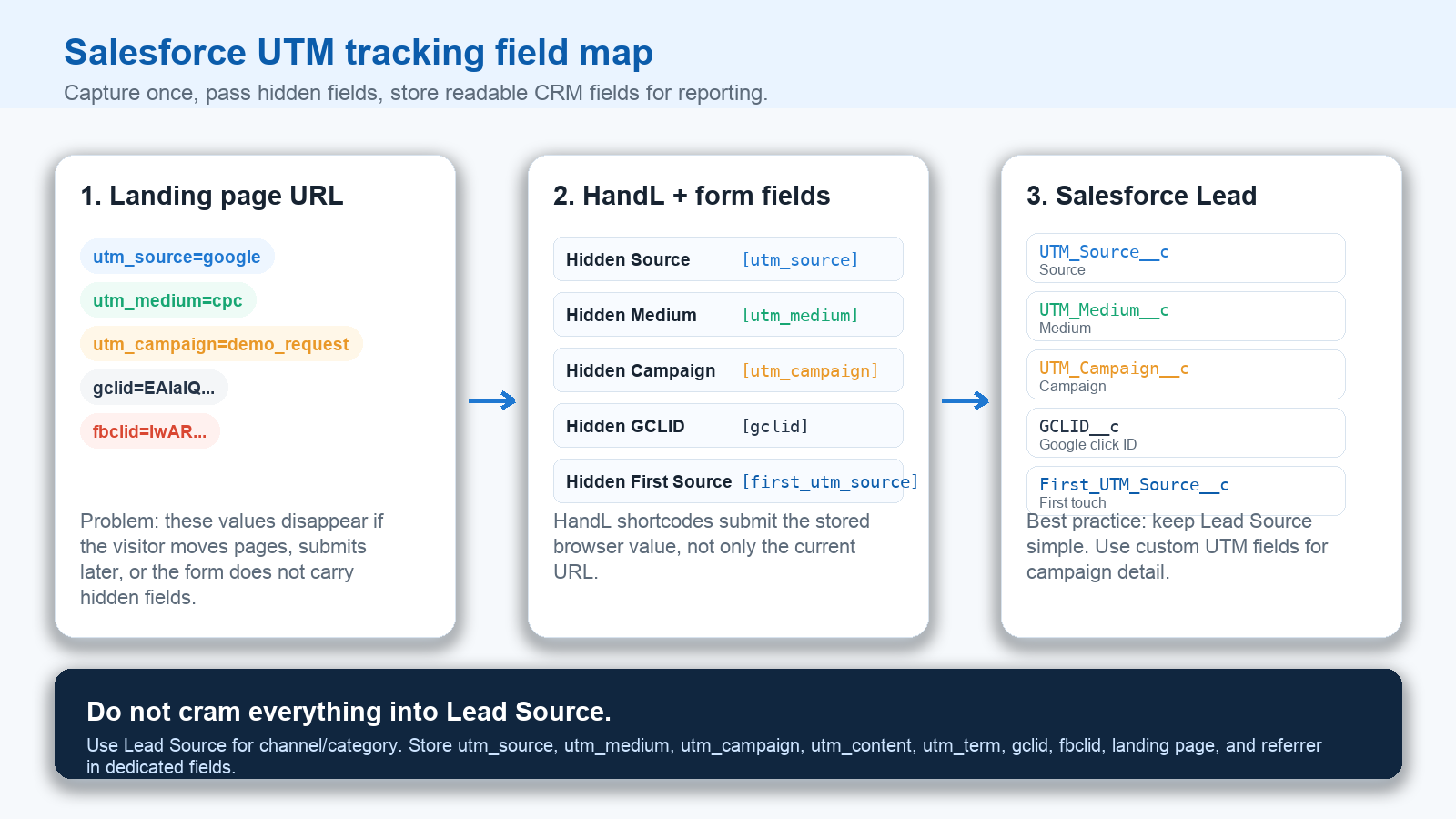
How UTMs get into Salesforce from WordPress
Salesforce does not magically know the UTM parameters that were present in the visitor's browser.
The data has to move through the full path:
- The visitor lands on a tagged URL.
- The website captures the parameters.
- The website stores them long enough for the visitor to submit a form.
- The form includes hidden fields.
- The hidden fields are populated before submit.
- The submission sends those values to Salesforce.
- Salesforce saves them to the correct Lead fields.
- Lead conversion mapping carries the important fields into Contacts, Accounts, and Opportunities.
With HandL UTM Grabber, the website side is handled by capturing and saving attribution values in the browser. Then you use shortcodes in hidden field values.
For example:
[utm_source]
[utm_medium]
[utm_campaign]
[utm_content]
[utm_term]
[gclid]
[fbclid]
[msclkid]
[first_utm_source]
[first_utm_campaign]
[handl_landing_page]
[handl_original_ref]
That matters because a visitor often does not submit the form on the first page.
They might enter through:
https://example.com/demo?utm_source=google&utm_medium=cpc&utm_campaign=salesforce_demo&gclid=EAIaIQ...
Then they click pricing, read a case study, open a booking page, and submit later from:
https://example.com/contact
If your tracking only reads the current URL, the UTM values are gone. If you persist them client-side and pass them into hidden fields, Salesforce still receives the source context.
Web-to-Lead UTM tracking: what usually breaks
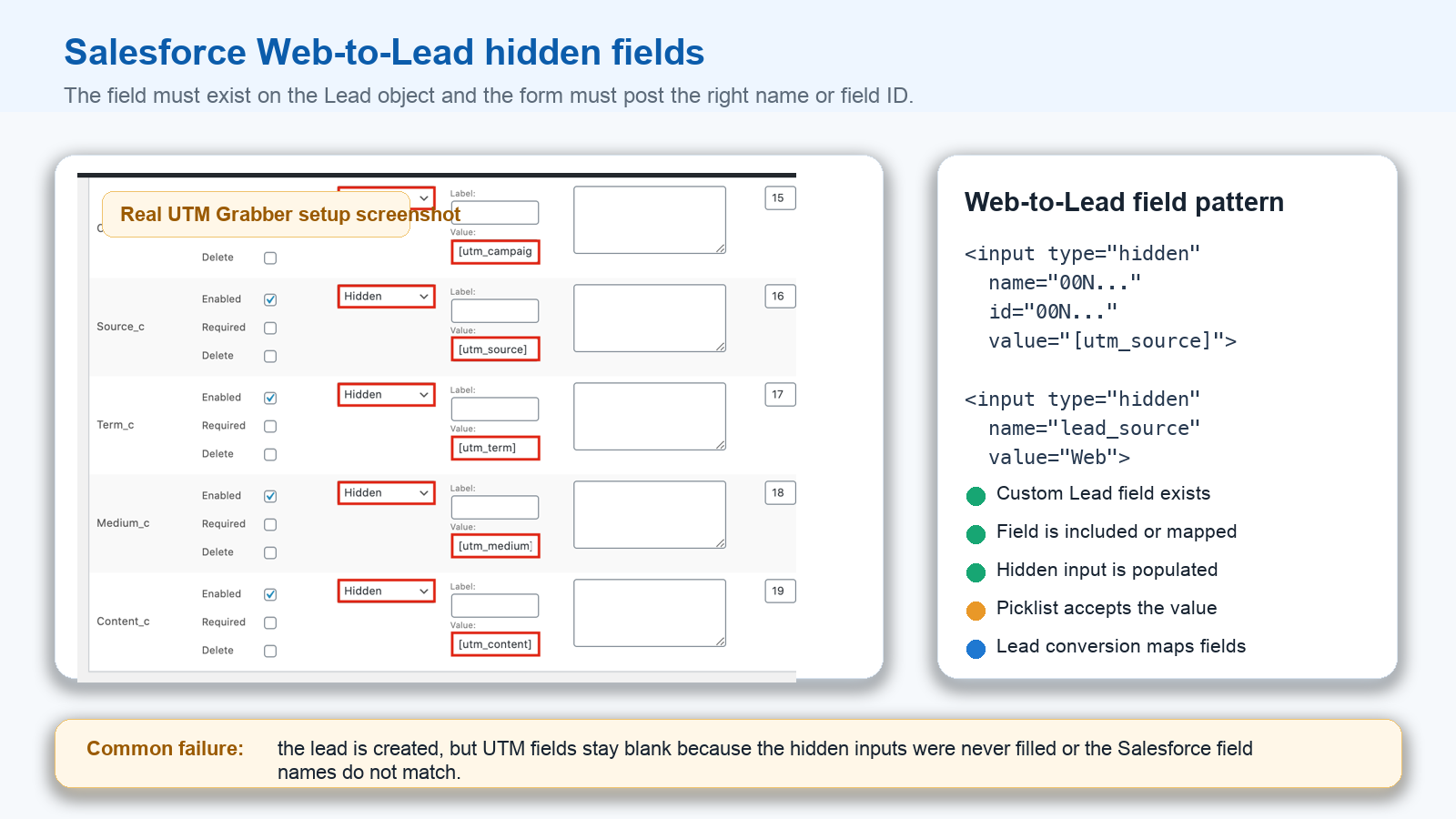
Salesforce Web-to-Lead is simple in concept: an HTML form posts to Salesforce and creates a Lead.
The problem is that Web-to-Lead forms only send the fields present in the submitted form. If your UTM fields are not included, not populated, or not named correctly, Salesforce will create the Lead without attribution.
Common Web-to-Lead failures:
- The custom Lead field exists in Salesforce, but the Web-to-Lead form does not include it.
- The hidden input uses the wrong Salesforce field ID or API name.
- The hidden field is present, but JavaScript never writes the UTM value into it.
- The form plugin uses a visible text field instead of a hidden field.
- The hidden field is hidden in the UI, but missing from the submitted payload.
- A validation rule or picklist rejects the value.
- The Lead is created correctly, but Lead conversion mapping is missing, so the Contact or Opportunity loses the field.
The right pattern is:
<input type="hidden" name="00N..." id="00N..." value="[utm_source]">
<input type="hidden" name="00N..." id="00N..." value="[utm_medium]">
<input type="hidden" name="00N..." id="00N..." value="[utm_campaign]">
<input type="hidden" name="00N..." id="00N..." value="[gclid]">
If you use the Brilliant Web-to-Lead for Salesforce plugin, the UTM Grabber docs show the same idea: edit the form and use the relevant shortcode in the value field. For the native Salesforce integration in HandL UTM Grabber, the setup is also field-based: go to Settings > Salesforce, add a form, add fields, set them as hidden, and use shortcodes as values.
A hidden field is only useful if it is included in the actual submitted payload.
Always test the final browser submission, not just the form builder screen.
The difference between Salesforce fields, Campaigns, and Campaign Influence
Salesforce Campaigns are useful, but they do not replace UTMs.
Think of the layers this way:
| Layer | What it answers | Example |
|---|---|---|
| Lead Source | Broad origin category | Google Ads |
| UTM fields | Campaign and click detail | utm_campaign=spring_demo, utm_content=video_ad_3 |
| Salesforce Campaign | Salesforce campaign membership or response tracking | Spring Demo Requests |
| Campaign Influence | Which campaigns influenced an Opportunity | Campaign A influenced Opportunity X |
| Google/Meta click IDs | Ad platform matching for feedback loops | gclid, gbraid, wbraid, fbclid |
If you only use Salesforce Campaigns, you may know that a Lead responded to a campaign. But you may not know the exact ad, keyword, landing page, or source string that created the session.
If you only use UTM fields, you may know the ad context, but you may not have the Lead connected to Salesforce Campaign reporting or Campaign Influence.
The stronger setup uses both:
- Store UTM and click ID fields on the Lead.
- Add the Lead or Contact to the appropriate Salesforce Campaign when the business logic is clear.
- Preserve the original UTM values even if Campaign membership changes later.
- Map key attribution fields forward during Lead conversion.
- Use Campaign Influence for opportunity influence, not as a substitute for raw tracking fields.
GCLID missing in Salesforce? Start here
If you run Google Ads, gclid, gbraid, and wbraid are not small details. They can be the difference between vague CRM reporting and useful offline conversion feedback.
Google's Salesforce integration and offline conversion documentation is built around connecting ad clicks to later CRM milestones. But that only works if the click identity survives long enough to be attached to the right Lead or Opportunity.
The usual flow looks like this:
- Google Ads sends traffic with auto-tagging and click IDs.
- The landing page captures
gclid,gbraid, orwbraid. - The form passes the click ID into Salesforce.
- Salesforce stores it on the Lead.
- Lead conversion mapping carries it into the Opportunity if needed.
- A qualified lead, converted lead, or closed-won event is imported back to Google Ads.
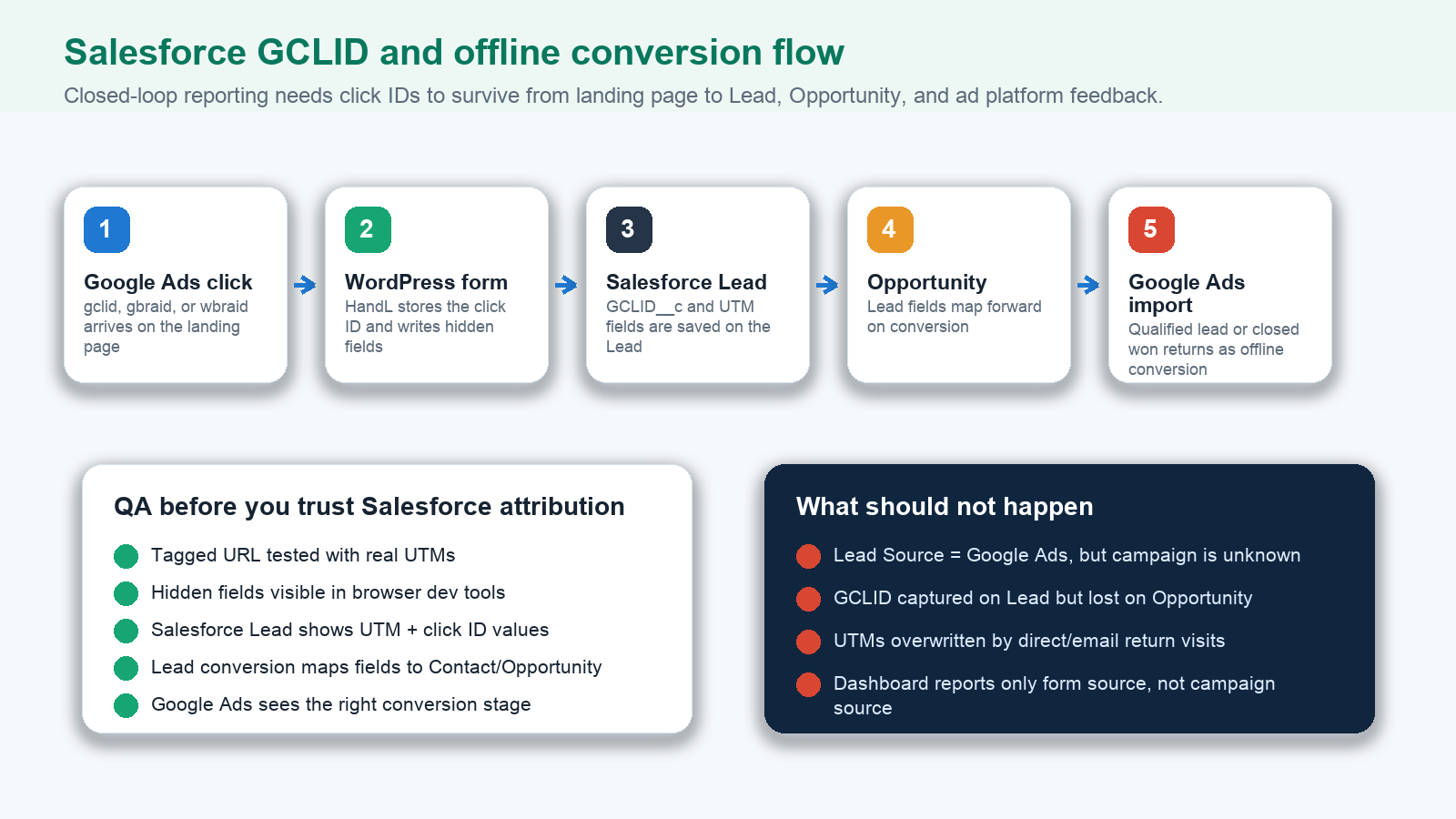
When this fails, check these before touching bidding strategy:
- Is Google Ads auto-tagging enabled?
- Does the landing page URL actually contain
gclid,gbraid, orwbraid? - Does your website capture the click ID before redirects remove it?
- Is the click ID saved in a hidden form field?
- Does the Salesforce Lead show the click ID?
- Is the field visible to the integration user?
- Does Lead conversion mapping carry the field forward if the import reads from Opportunity?
- Are duplicate rules or merge rules keeping the wrong older value?
- Are consent rules preventing the click ID from being stored?
If the click ID is not on the Salesforce record, the ad platform cannot reliably connect the CRM outcome to the original click.
First-touch and latest-touch fields in Salesforce
Salesforce records live longer than one session.
A buyer might:
- First arrive from Google Ads.
- Return from a LinkedIn retargeting ad.
- Click an email.
- Submit a pricing form.
- Book a demo.
- Become an Opportunity.
- Close two months later.
If you only have one UTM_Source__c field and every form submission overwrites it, you lose context.
Use two field groups:
| Field type | Rule |
|---|---|
| First-touch fields | Populate only if blank. Keep original acquisition context. |
| Latest-touch fields | Update when a new tracked conversion happens. |
| Conversion-touch fields | Store the source/click ID tied to a specific action, such as demo request or consultation booking. |
This prevents a retargeting click, an email click, or a direct return visit from erasing the acquisition source.
It also gives leadership two useful views:
- Original source: what created the person or account.
- Conversion source: what pushed them into a Lead, meeting, Opportunity, or purchase.
What to map during Salesforce Lead conversion
Lead conversion is where many Salesforce UTM setups quietly fail.
The Lead shows campaign data. Then the rep converts the Lead. The Contact is created. The Opportunity is created. The UTM fields are suddenly gone from the report that matters.
That happens when field mapping is incomplete.
At minimum, decide which fields should map from Lead to:
- Contact
- Account
- Opportunity
For B2B reporting, Opportunity mapping is especially important because revenue reports usually live at the Opportunity level.
A practical mapping strategy:
| Lead field | Contact | Account | Opportunity |
|---|---|---|---|
| First UTM Source | Yes | Optional | Yes |
| First UTM Campaign | Yes | Optional | Yes |
| Latest UTM Source | Yes | Optional | Yes |
| Latest UTM Campaign | Yes | Optional | Yes |
| GCLID / GBRAID / WBRAID | Optional | No | Yes if used for offline import |
| Landing Page | Yes | Optional | Yes |
| Referrer | Yes | Optional | Optional |
Do not assume the fields mapped just because they exist on the Lead.
Test conversion with a real Lead and inspect the Contact and Opportunity afterward.
Salesforce UTM field names: keep them boring
Attribution fields should be easy to understand, easy to report on, and hard to misuse.
Use names like:
First UTM Source
First UTM Medium
First UTM Campaign
First UTM Content
First UTM Term

Latest UTM Source
Latest UTM Medium
Latest UTM Campaign
Latest UTM Content
Latest UTM Term

GCLID
GBRAID
WBRAID
FBCLID
MSCLKID
First Landing Page
Latest Landing Page
First Referrer
Latest Referrer
Avoid names like:
Campaign
Source
Marketing
Tracking
Ad Info
Lead Detail
Those names are too vague. Six months later, nobody knows whether Campaign means Salesforce Campaign, Google Ads campaign, Meta campaign, UTM campaign, Pardot campaign, or a sales campaign.
What about Account Engagement, Marketing Cloud, or other Salesforce products?
Salesforce has multiple marketing and attribution surfaces. Teams might use Sales Cloud, Account Engagement, Marketing Cloud, Marketing Cloud Personalization, Data Cloud, or a third-party form system.
The implementation details change, but the tracking principle does not:
The first system that sees the browser session must capture the attribution data and pass it to the system of record.
If the form is a WordPress form that creates a Salesforce Lead, WordPress needs to capture and submit the UTM data.
If the form is Web-to-Lead, the HTML form needs hidden fields.
If the form is embedded in an iframe, the iframe needs to receive the parameters or otherwise read persisted values.
If a marketing automation platform creates the Lead, the integration must map the attribution fields into Salesforce.
If Salesforce is downstream, it cannot guess the original campaign after the fact.
The Salesforce UTM QA checklist
Use this before you trust any report.
1. Test with a real tagged URL
Use a URL like:
https://example.com/demo?utm_source=google&utm_medium=cpc&utm_campaign=salesforce_utm_test&utm_content=ad_a&utm_term=crm_tracking&gclid=test-gclid-123
Submit the form like a normal visitor.
2. Inspect the form payload
Use browser developer tools or your form submission logs.
Confirm the payload includes:
utm_sourceutm_mediumutm_campaignutm_contentutm_termgclid- landing page
- referrer
3. Inspect the Salesforce Lead
Open the created Lead and confirm the custom fields are populated.
Do not stop at "the Lead was created." That only proves the form worked. It does not prove attribution worked.
4. Convert the Lead
Convert the Lead into Contact, Account, and Opportunity if that is your normal process.
Confirm key fields survived the conversion.
5. Check reports and permissions
Make sure the fields are:
- Available to the integration user.
- Visible on the relevant page layouts.
- Included in report types.
- Included in exports or dashboards.
- Available to Flow, Zapier, Make, or API jobs that need them.
6. Test duplicate and returning visitor behavior
Submit again from a different source.
Confirm first-touch fields stay stable and latest-touch fields update only when intended.
7. Test ad platform feedback
If Google Ads, Meta, LinkedIn, or Microsoft Ads needs offline conversion feedback, confirm the required click ID or matching fields exist on the record used for import.
Common Salesforce attribution problems and fixes
UTM parameters are in the URL but blank in Salesforce
This usually means the website did not pass values into hidden fields, or the hidden fields were not included in the submitted payload.
Fix:
- Capture the UTM parameters on arrival.
- Persist them in the browser.
- Add hidden fields to the form.
- Populate the fields before submit.
- Map the fields into Salesforce.
Salesforce Lead Source says Web for every lead
Lead Source is broad by design. It may tell you the lead came through the web, not the campaign that created the lead.
Fix:
Keep Lead Source simple, then add dedicated UTM and click ID fields.
GCLID is missing from Salesforce
The most likely causes are redirects, missing hidden fields, consent timing, form plugin timing, or a field mapping issue.
Fix:
Test with a real Google Ads click or a controlled tagged URL. Confirm gclid, gbraid, or wbraid reaches the landing page, hidden field, Salesforce Lead, and Opportunity if needed.
The Lead has UTMs but the Opportunity does not
This is usually a Lead conversion mapping issue.
Fix:
Map important custom Lead fields to Opportunity fields before conversion, then retest with a new Lead.
Salesforce Campaign reports do not match UTM reports
Campaign membership and UTM fields answer different questions.
Fix:
Use UTMs for source/campaign/click detail. Use Salesforce Campaigns for campaign membership, response, and influence logic.
First-touch attribution keeps changing
One field is being overwritten by every submission.
Fix:
Use first-touch fields that write only when blank and latest-touch fields that can update.
Form submissions from cached pages are missing UTM fields
Caching can serve the page fast, but the hidden fields still need to be filled client-side at the right time.
Fix:
Use client-side UTM persistence and test the real cached page, not only a logged-in admin page.
Consent management blocks tracking
Some consent tools delay cookies, scripts, or storage until after consent.
Fix:
Define which attribution values are allowed before consent in your compliance model, then test both consent accepted and consent declined states.
What a clean Salesforce attribution report should answer
A healthy setup should let you answer:
- Which campaigns created new Leads?
- Which campaigns created qualified Leads?
- Which campaigns created Opportunities?
- Which campaigns created closed-won revenue?
- Which keywords or ads created pipeline?
- Which forms are losing attribution?
- Which landing pages generate high-quality Leads?
- Which first-touch sources create accounts?
- Which latest-touch sources drive demo requests?
- Which click IDs are missing before offline conversion import?
If your Salesforce report cannot answer those questions, the issue is usually upstream.
The missing data was probably never captured, never submitted, never mapped, or overwritten later.
The hidden cost of weak Salesforce UTM tracking
Bad Salesforce attribution does not only make reports ugly.
It changes decisions.
Teams pause campaigns that are actually creating pipeline. They scale campaigns that only create low-quality leads. They give sales teams source values that are too vague to route or prioritize. They send weak offline conversion data back to ad platforms. Then Google, Meta, LinkedIn, and Microsoft optimize against partial truth.
If Salesforce is the revenue source of truth, attribution fields need the same care as email, phone, company, and opportunity amount.
What good Salesforce UTM tracking looks like
- Every form submission has hidden attribution fields.
- UTM values persist across pages before form submission.
- Lead Source stays simple and readable.
- Dedicated UTM fields store campaign-level detail.
- First-touch fields do not get overwritten.
- Latest-touch fields update intentionally.
gclid,gbraid,wbraid,fbclid, andmsclkidare captured when present.- Lead conversion mapping carries important fields into Contact and Opportunity records.
- Salesforce Campaigns and Campaign Influence complement UTMs instead of replacing them.
- Google Ads offline conversion imports have the click ID or matching data they need.
- Sales, marketing, and finance can inspect the same record and understand where the lead came from.
Why trying harder in Salesforce reports will not fix this
How HandL UTM Grabber helps Salesforce attribution
HandL UTM Grabber captures UTM parameters, click IDs, referrer data, landing page data, and first-touch/latest-touch values on WordPress, then makes those values available to forms and integrations.
For Salesforce, that means you can populate hidden fields with shortcodes, send campaign data into Salesforce Leads, preserve first-touch context, capture click IDs for offline conversion workflows, and avoid the classic "Lead Source is Web, but nobody knows which campaign worked" problem.
This is especially useful when Salesforce is downstream from WordPress forms, Web-to-Lead forms, Brilliant Web-to-Lead, Zapier, Make, or custom workflows.
Who should use this Salesforce UTM tracking setup
- B2B teams that use Salesforce as the source of truth for pipeline and revenue.
- Agencies that need to prove which campaigns create qualified leads, not just form fills.
- WordPress sites sending leads into Salesforce through forms, Web-to-Lead, Zapier, Make, or custom integrations.
- Paid media teams importing qualified leads or closed-won conversions back into Google Ads.
- Revenue operations teams cleaning up Lead Source, Campaign, and Opportunity attribution.
- Founders who need to know which channel actually creates sales, not just traffic.
Related references
- UTM Tracking for Salesforce
- Contact Form 7 UTM Tracking
- WPForms UTM Tracking
- GCLID Missing in Your CRM?
- WP Engine Caching and UTM Tracking
Sources checked:
- Salesforce UTM Tracking Integration, UTM Grabber docs
- Capture UTMs in Brilliant Web-to-Lead for Salesforce, UTM Grabber docs
- Native WP Shortcodes in HandL UTM Grabber
- Salesforce Help: Set Up Web-to-Lead
- Salesforce Campaign Influence Implementation Guide
- Google Ads Help: How to set up a Salesforce integration
- Google Ads Help: Manually import Google Ads conversions from Salesforce