Watch the whole setup in a 2-minute video. Install the free plugin, copy your link, connect Claude, and get your first report. Every step is also written out below.
How do I connect my AI to UTM Grabber?
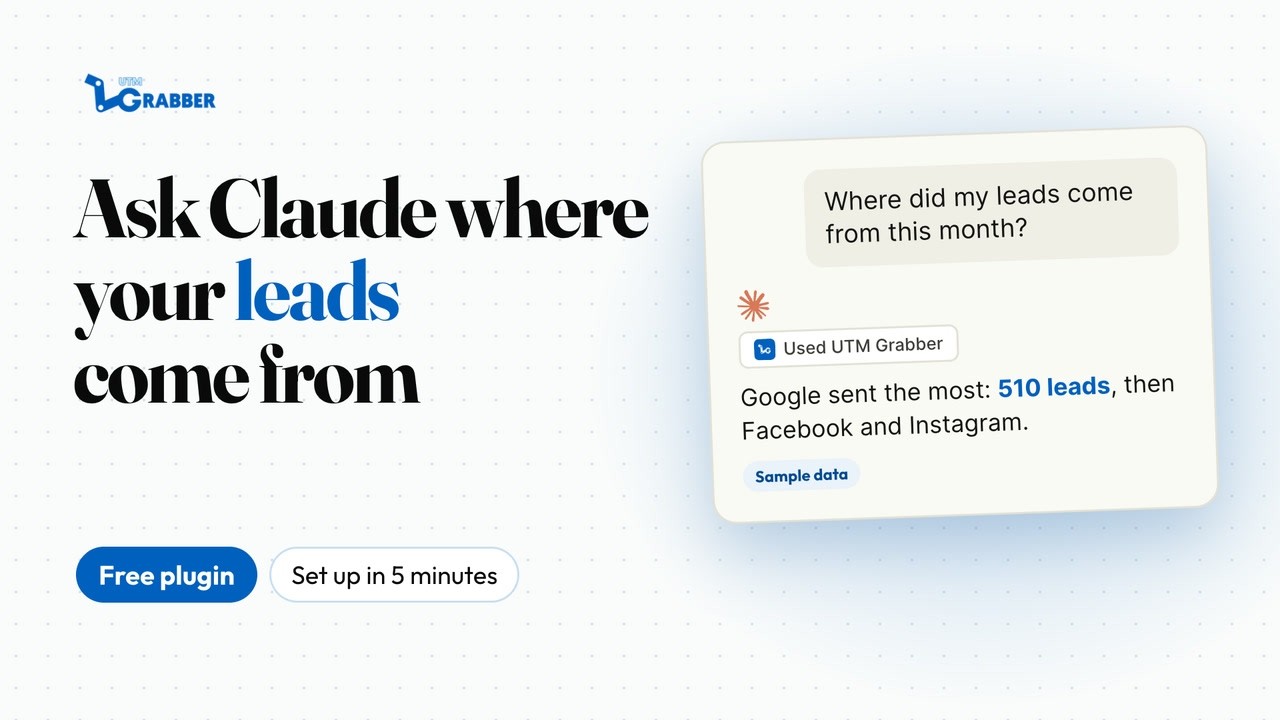
Open your WordPress admin, click UTM in the left menu, then the MCP tab, and copy your private link. In Claude, go to Customize, then Connectors, add a custom connector named “UTM Grabber”, and paste the link. Switch it on in a chat and ask, “Where did my leads come from this month?” It takes about five minutes, and every UTM Grabber plan can connect, the free plugin included.
What's the AI Connector (MCP)? It's a private link that lets your AI read the leads UTM Grabber records on your WordPress site, so you can ask questions about them in plain English.
In WordPress, open UTM, click the MCP tab, and click the copy button next to your link.
a
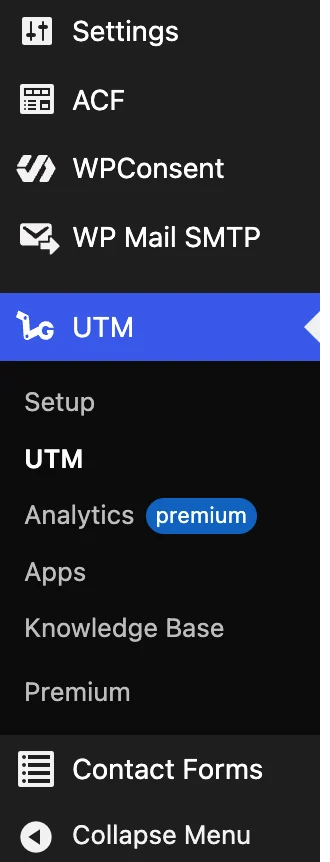
Log in to your WordPress admin. In the left menu, click UTM. It sits near the bottom, under Settings.
a
b
Along the top of the UTM Grabber page, click the last tab, MCP.
b
b
c
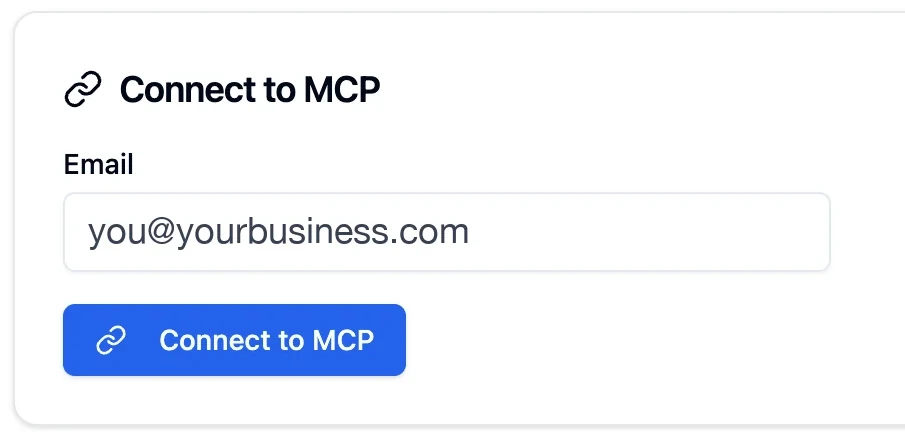
First time only: type your email and click Connect to MCP. This creates your private link.
c
c
d
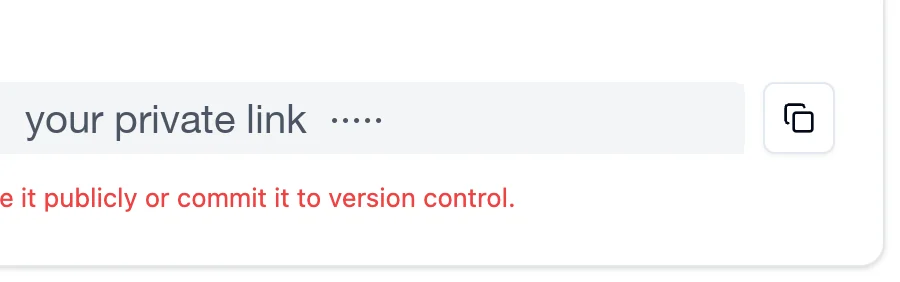
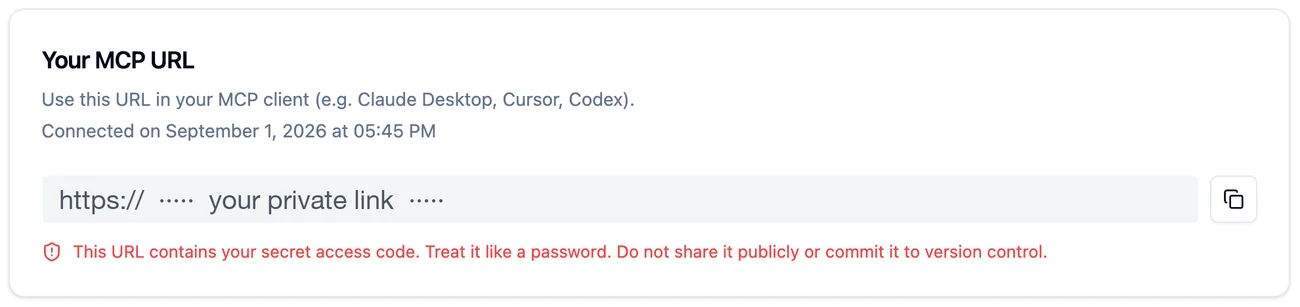
Under Your MCP URL, click the small copy button at the right end of the link. Your link is now copied.
d
d
Real screenshots from the free UTM Grabber plugin. We hid the email and the private link, and trimmed some text. UTM Grabber Premium has the same MCP tab under UTM, and your screen may look slightly newer.
You'll know it worked when you see a box called “Your MCP URL” with a long link inside, and a red note about your secret access code. Treat it like a password: it goes into your AI, and nowhere else.
2
Step 2: Paste It Into Your AI
Pick your AI app below, add UTM Grabber as a connector, and paste your link.
In Claude (claude.ai or the desktop app)
Works on every Claude plan, including Free. The Free plan allows one custom connector. On a Team or Enterprise plan, an Owner adds it first under Organization settings, then Connectors, and you click Connect.
1
Open Claude and go to Customize, then Connectors.
Illustration
1
Customize
Connectors
2
Click + Add, then Add custom connector.
Illustration
2
Connectors+ Add
Browse connectorsAdd custom connector
3
Name it UTM Grabber, paste your link, and click Continue. If Claude asks how to sign in, choose No sign in (your link already has your key). Click Add.
Illustration
3Add custom connectorNameUTM GrabberRemote MCP server URLPaste your private link here
CancelContinue
4
In a chat, click the + button at the bottom left, choose Connectors, and switch on UTM Grabber.
Illustration
4
ConnectorsUTM Grabber
+Ask about your leads…
Simplified drawings of Claude's menus, not screenshots. Labels match Claude's help page.
You'll know it worked when “UTM Grabber” shows in your Connectors list, and its switch is on in the chat's + menu.
In ChatGPT (on chatgpt.com, in a web browser)
OpenAI supports this on ChatGPT Business, Enterprise and Edu, on the web only (not the phone app). On Business, only an admin or owner can add it, so ask yours. On ChatGPT Free, Plus or Pro, OpenAI's help page doesn't list custom connections, so use Claude instead.
1
Open chatgpt.com in your browser and go to Plugins.
Illustration
1
Plugins
Plugins
2
Click the + button, then Add custom MCP server.
Illustration
2
Plugins+
Add custom MCP server
3
Name it UTM Grabber and paste your link under Connection. Your link already has your key, so it needs no extra sign-in. Tick I understand and want to continue, then click Create.
Illustration
3Add custom MCP serverNameUTM GrabberConnectionPaste your private link here✓I understand and want to continue
Create
4
Start a new chat, type @, and pick UTM Grabber. Then ask your question.
Illustration
4
@ appsUTM Grabber
@UTM Grabber where did my leads come from?
Simplified drawings of ChatGPT's menus, not screenshots. Labels match OpenAI's help page.
You'll know it worked when “UTM Grabber” shows up after you type @ in a new chat.
In Codex (the desktop app)
Codex comes with every ChatGPT plan, from Free to Enterprise. On Free and Go, OpenAI says the desktop app is still rolling out. OpenAI's setup docs now call it the ChatGPT desktop app. The steps are the same.
1
Open the Codex desktop app and go to Settings, then MCP servers.
Illustration
1
MCP servers
Settings: MCP servers
2
Click Add server. Name it utmgrabber, choose Streamable HTTP, and paste your private link as the server's URL.
Can't find the setting? Codex also reads a settings file called config.toml. Copy this block into it and swap in your link, or ask your developer.
Restart Cursor, open a new chat, and ask your question.
Illustration
4New chat
Where did my leads come from this month?
Simplified drawings, not screenshots. The block matches UTM Grabber's setup docs and Cursor's MCP docs.
You'll know it worked when “utmgrabber” shows in Cursor's MCP list as on, and Cursor answers with your real lead numbers.
3
Step 3: Ask Your First Question and Get a Real Answer
Copy one of these into your AI chat, with UTM Grabber switched on, and send it.
“Where did my leads come from this month?”
“Which campaign brought me the most leads in the last 30 days?”
“Which of my forms got leads this week, and from where?”
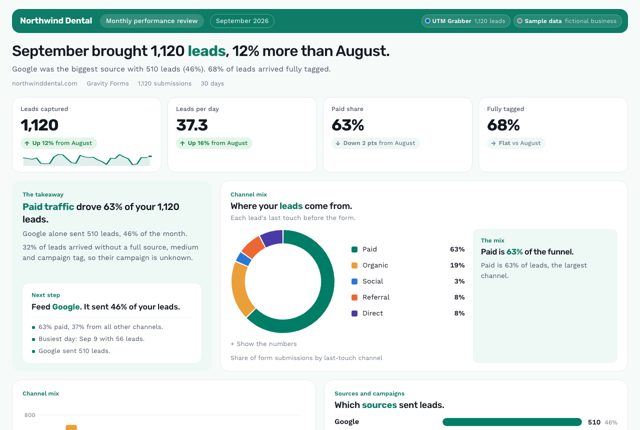
What can come back: a sample Monthly performance review, built on sample data for Northwind Dental, a fictional dental practice.See This Report →
You'll know it worked when your AI shows that it's using UTM Grabber, then answers with your own sources, campaigns and lead counts. Always check the numbers before you act on them.
4
Step 4 (optional): Get Branded Reports With the Free Reports Skill
Optional. Paste this into your AI once, and it learns 30 ready-made reports in your brand colors.
Install the UTM Grabber skill from https://github.com/handldigital/utm-grabber-skills/releases/latest/download/utm-grabber-reports.skill, then run a sample monthly attribution report.
The report designs need an AI app that supports skills: Claude, Codex or Cursor.
Update UTM Grabber first. In WordPress, go to Plugins and click "update now" under UTM Grabber if you see it. The free plugin added the MCP tab in version 2.9.14. Then click UTM in the left menu and look along the row of tabs at the top. MCP is the last one.
My link doesn't work.+
Copy it again with the copy button, so you get the whole link. If anyone clicked Reconnect or Disconnect in WordPress, the old link stopped working. Copy the new link and add it to your AI again. In Claude, remove the old connector first, because you can't edit a link in place.
My AI can't see UTM Grabber.+
Switch it on for the chat. In Claude, click + at the bottom left, choose Connectors and turn on UTM Grabber. In ChatGPT, type @ and pick UTM Grabber in each message that needs fresh data. Still nothing? Start a new chat and ask again.
Claude won't let me add another connector.+
Claude's Free plan allows one custom connector. Remove one you don't use under Customize, then Connectors, or move to a paid Claude plan.
Which plan do I need?+
Any plan can connect. On the free plugin and Starter, your AI reads your last 30 days of leads, with a fair-use allowance. Starter also saves richer data on every lead. Starter+ and Premium are unmetered and read your full history. WooCommerce revenue needs Starter+ or Premium. See the plans →
Is my data safe?+
Your leads stay in your WordPress database. Our connection passes them to your AI when you ask, and doesn't keep a copy. Your link holds a secret access code. Treat it like a password: it goes into your AI, and nowhere else. To cut off access at any time, click Disconnect on the MCP tab in WordPress.
Want Us to Set It Up With You?
Book a demo, and we'll connect your AI together on the call and ask it your first questions.
Every UTM Grabber plan can connect to your AI. Free and Starter include a fair-use allowance on your last 30 days of leads, and Starter+ and Premium are unmetered, with your full history.
Rather have us do it all? The Support Package covers setup, fixes and custom reports for $199/yr.