
Elementor UTM Tracking: Hidden Fields, Native Parameters, Webhooks, and CRM Attribution
If you run paid traffic into an Elementor landing page, the form submission is not the finish line. It is the handoff point where ad click data either becomes usable revenue attribution or disappears into another "unknown source" lead.
The common failure looks simple: the visitor lands with utm_source, utm_campaign, gclid, gbraid, wbraid, fbclid, or other click identifiers in the URL, but the Elementor Form submission reaches Mailchimp, ActiveCampaign, HubSpot, Salesforce, Zapier, Make, or your CRM without the campaign context.
That is not just a form problem. It is a tracking chain problem: capture the parameter, store it reliably, populate the Elementor field, submit it with the payload, map it into the destination field, and preserve it if the visitor moves to another page.
For Elementor Forms, the cleanest approach is to use HandL UTM Grabber's native Elementor parameter support instead of trying to patch Elementor with custom cookie modules or brittle JavaScript.
If this is what you are trying to fix
- You search how to track UTM parameters in Elementor Forms because leads are entering the CRM with no source.
- The URL has UTMs, but Elementor hidden fields are empty when the form submits.
- Elementor sends the lead email, but Mailchimp, ActiveCampaign, HubSpot, Salesforce, Zapier, or Make does not receive the UTM fields.
utm_campaignworks on one Elementor form, but fails after a template is duplicated.- You see
gclid,gbraid,wbraid, orfbclidin the landing page URL, but those IDs never reach your offline conversion workflow. - A button, redirect, checkout, calendar, or application step sends users away from the page and drops the attribution trail.
- Your form builder says everything is configured, but sales still sees lead source = unknown.
These are implementation problems. They can be tested, reproduced, and fixed with a clear field and payload strategy.
How Elementor UTM tracking should work
Start with the attribution chain
A reliable Elementor UTM setup has six parts:
- Capture the first landing URL and campaign parameters.
- Persist the values so they survive reloads, navigation, and delayed form submissions.
- Populate Elementor Form fields with the exact parameter names you care about.
- Submit those fields with the Elementor payload.
- Map the payload into the CRM, email platform, webhook, or automation tool.
- QA the live page, not just the Elementor builder screen.
Most broken implementations only check step 3. They add a hidden field, see it in the builder, and assume attribution is solved. But the business result depends on the full chain.
A hidden field is not attribution. A hidden field is only one container in the attribution handoff.
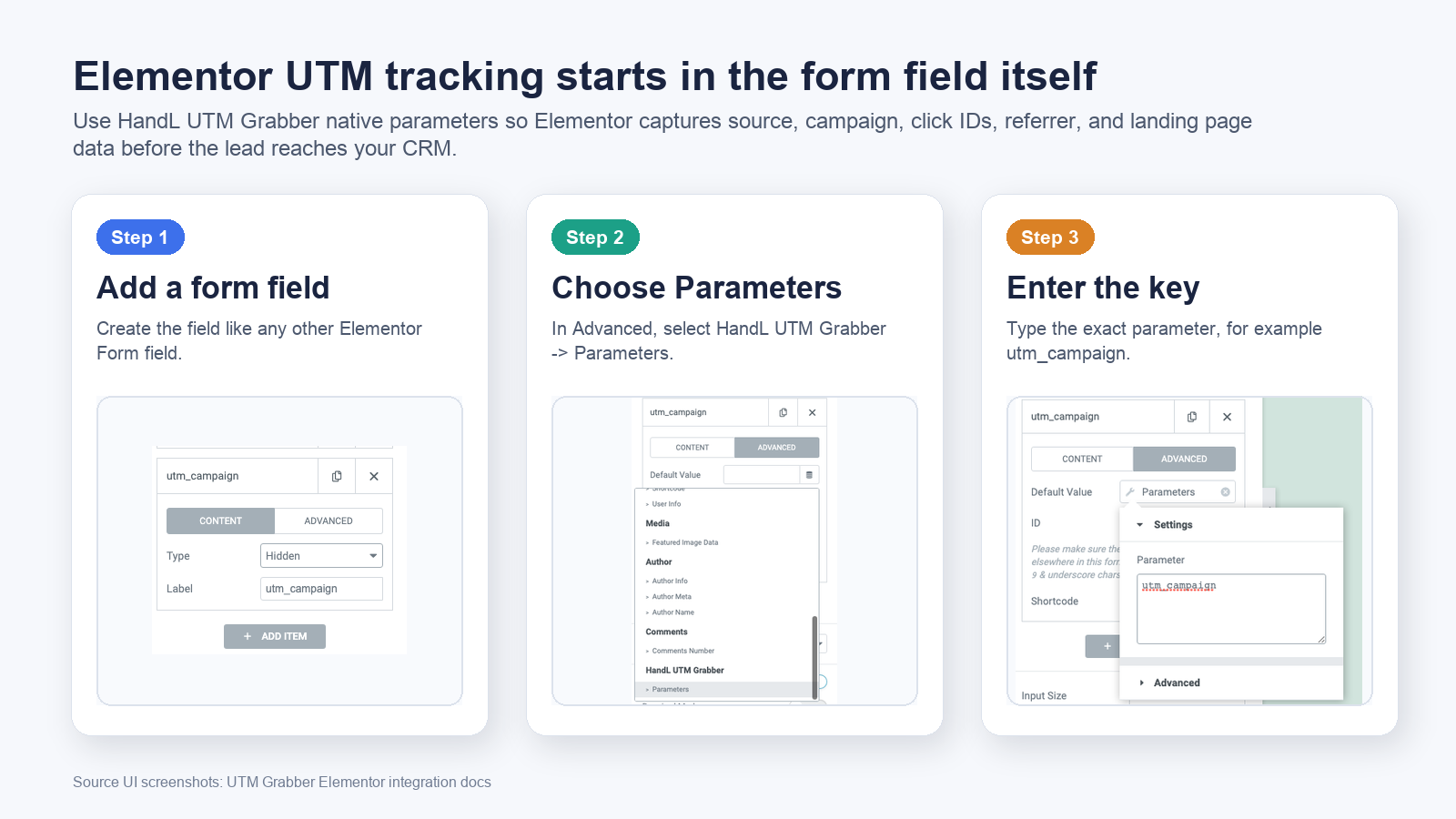
The recommended Elementor method: native HandL parameters
The current preferred UTM Grabber workflow is simple:
- Add a field to the Elementor Form.
- Go to the field's Advanced tab.
- Under the HandL UTM Grabber menu, choose Parameters.
- Enter the exact parameter name, such as
utm_source,utm_medium, orutm_campaign. - Repeat for every parameter you want to send downstream.
This is better than the old cookie-module workaround because the Elementor field itself is explicitly connected to the UTM Grabber parameter source.
Use a stable naming convention. If your destination CRM expects utm_campaign, do not create campaign, UTM Campaign, utmCampaign, and utm_campaign_name across different forms. Field naming drift is one of the easiest ways to create silent attribution loss.
What parameters should an Elementor form capture?
For most paid-media and SEO attribution workflows, start with this core set:
| Field | Why it matters |
|---|---|
utm_source | Channel or platform, such as google, meta, linkedin, newsletter. |
utm_medium | Traffic type, such as cpc, paid_social, email, organic. |
utm_campaign | Campaign name or campaign ID used for reporting. |
utm_term | Keyword, audience, or targeting signal when available. |
utm_content | Creative, ad, placement, or variation. |
gclid | Google Ads click ID for offline conversion workflows. |
gbraid / wbraid | Google Ads iOS-related click identifiers. |
fbclid or fbc | Meta click identifier context when available. |
landing_page | The first page that started the session. |
referrer | The previous site or source when campaign tags are missing. |
Do not collect fields only because a dashboard has room for them. Collect the fields your reporting, CRM routing, sales follow-up, and offline conversion workflows will actually use.
The old hidden-field method is now an archive path
The older Elementor documentation showed a manual process: add an Elementor Form item, set the type to Hidden, name the label, set a Custom ID, and publish. That pattern helped many teams, but it is no longer the best default when native HandL Elementor parameter support is available.
The archived cookie-support method is also deprecated. It involved adding a custom cookies.php dynamic tag module inside Elementor Pro files. That can work in very specific historical setups, but it is fragile because plugin updates, permission changes, or code edits can break it.
Use native Elementor Form support first. Reach for custom code only when you have a very specific engineering reason.
The CRM handoff is where many Elementor UTM setups fail
Elementor can capture the data, but your business only benefits when the data reaches the destination system.
Elementor's Actions After Submit area can trigger actions like collecting submissions, email, redirect, Mailchimp, ActiveCampaign, and webhook workflows. For attribution, webhook workflows are often the most flexible because they can send the full payload into Zapier, Make, a custom endpoint, or a CRM automation layer.
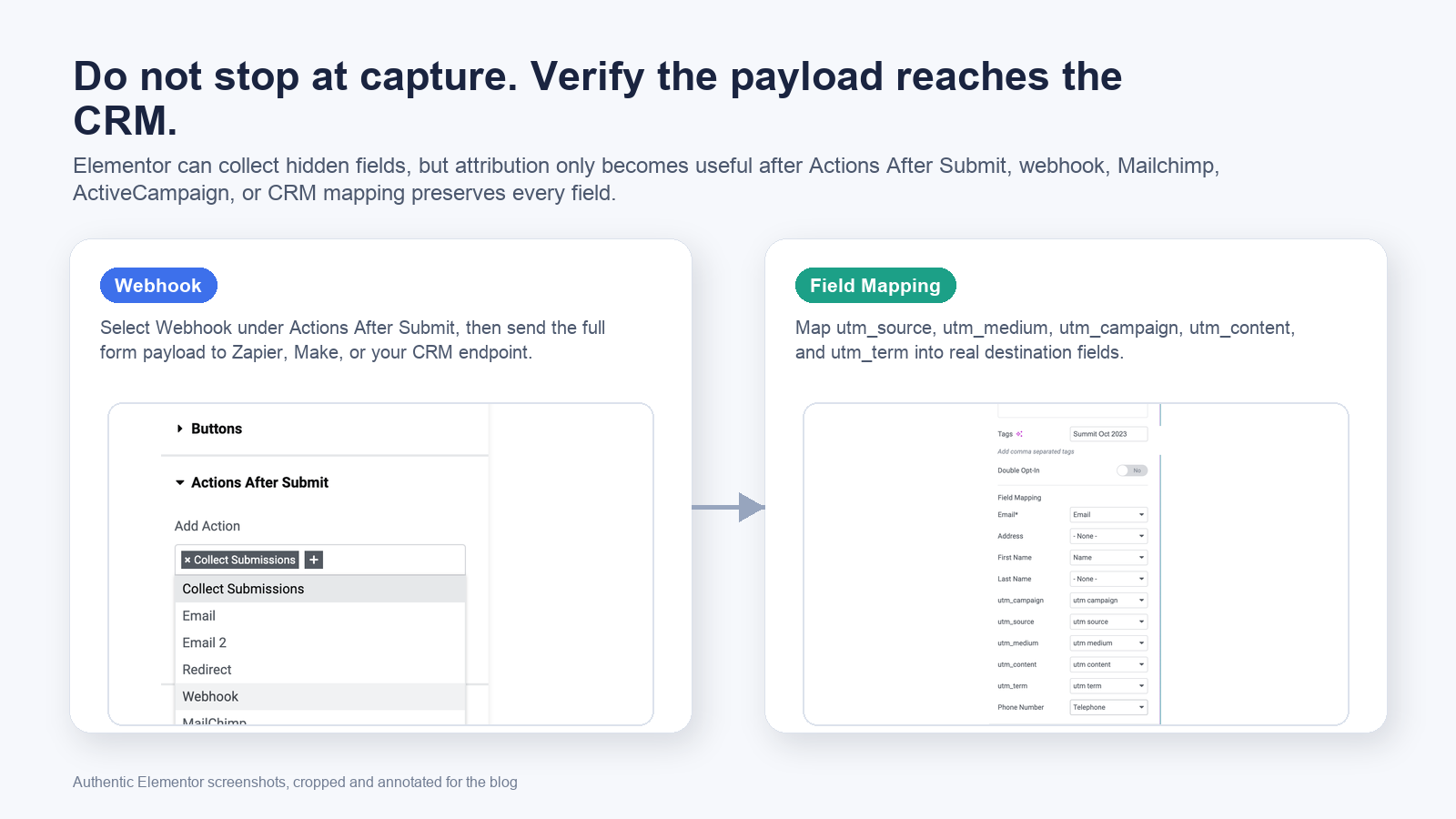
When you use Mailchimp, ActiveCampaign, or another native integration, make sure each UTM field is mapped into a real destination field. A form field named utm_source does not help if the integration never maps it.
For ActiveCampaign specifically, the UTM Grabber docs call out an Elementor mapping edge case: hidden custom parameters may not appear for mapping. The safer operational fix is usually to make the destination custom fields mappable text fields. The docs also show a developer-level Elementor Pro handler edit, but plugin-core edits should be treated carefully because updates can overwrite them.
Preserve UTMs when Elementor sends the visitor to another step
Many Elementor funnels do not end on the first page. A visitor might click to:
- a pricing page
- a booking calendar
- a checkout page
- a survey or application page
- a third-party form
- another subdomain
That is where campaign data often leaks. UTM Grabber's utm-out class helps append UTM variables to selective Elementor buttons or every hyperlink inside an Elementor Text Editor widget.
For a selective Elementor button, add this custom attribute:
class|utm-out
For an Elementor Text Editor widget, add this CSS class:
utm-out
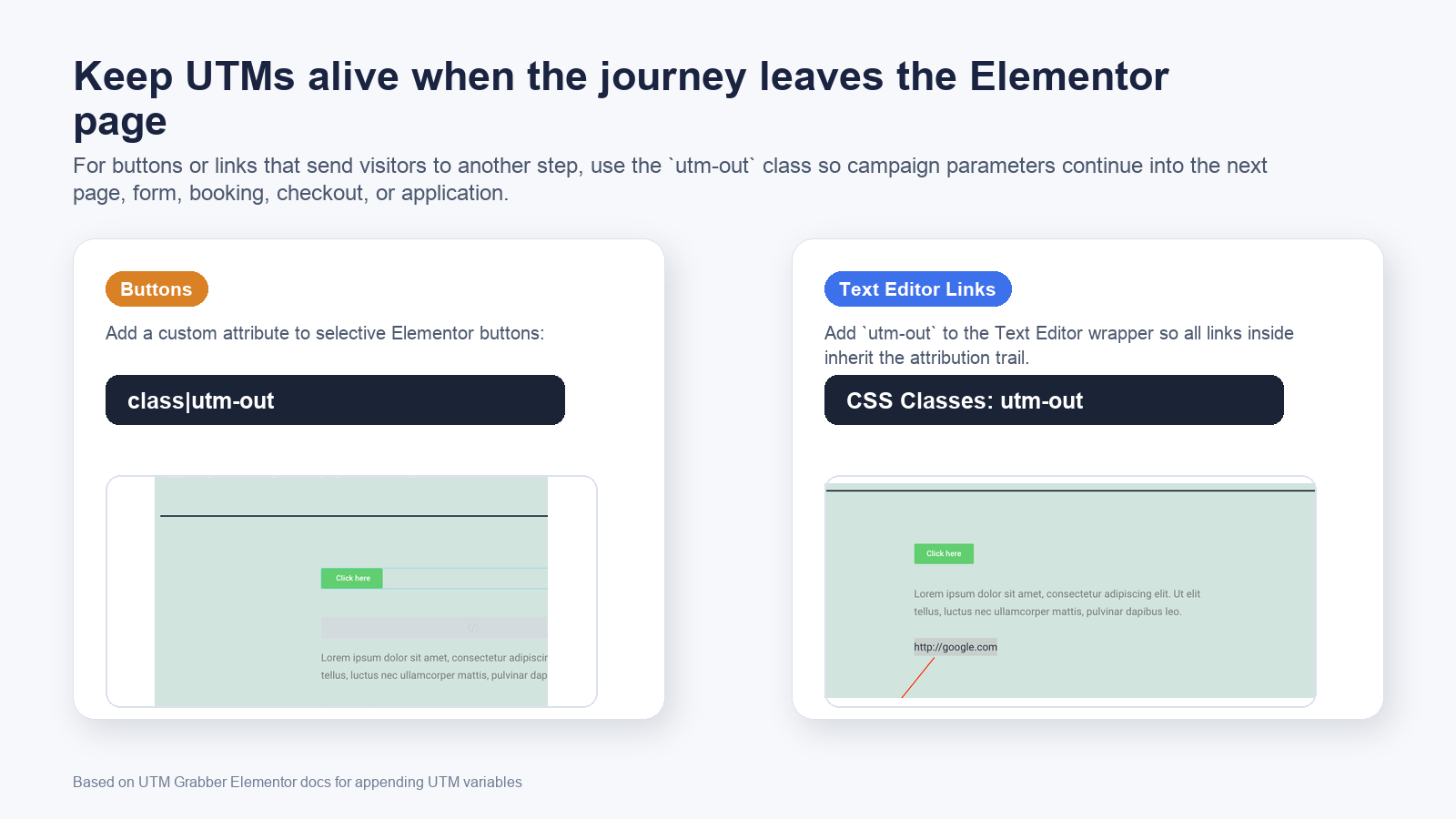
This matters when your lead journey has more than one page. If the campaign data disappears before the final form, the CRM will not know where the lead really came from.
QA the live Elementor form like a payload, not a page
Here is the test we recommend before calling an Elementor UTM setup done:
- Open an incognito window while logged out of WordPress.
- Visit the landing page with a full test URL, for example
?utm_source=google&utm_medium=cpc&utm_campaign=test_campaign&utm_content=test_ad&gclid=test-gclid. - Submit the Elementor form.
- Inspect the network request or webhook payload.
- Confirm the Elementor submission contains every UTM and click ID field.
- Confirm the CRM, Mailchimp, ActiveCampaign, Zapier, or Make record receives the same values.
- Click any Elementor buttons or text links that should preserve UTMs and confirm the next page still has the parameters.
- Repeat the test after cache, cookie consent, GTM Consent Mode, and optimization plugins are active.
Do not only test while logged into WordPress. Logged-in traffic, preview mode, disabled cache, and admin sessions can hide the exact failures real visitors experience.
Common Elementor UTM tracking mistakes
Mistake 1: Adding the field but not mapping the destination
The form payload can be perfect while the CRM field is still blank. If your destination system has no mapped field, the data is thrown away after submission.
Mistake 2: Changing field IDs after duplicating a template
Elementor templates are easy to clone. That is useful, but duplication can create drift between labels, IDs, webhook mappings, and CRM properties. Retest every copied form.
Mistake 3: Mixing parameter names
utm_campaign, utm-campaign, campaign, and UTM Campaign are not the same thing in a payload workflow. Use a clear schema and enforce it.
Mistake 4: Depending on URL-only tracking
A visitor can arrive with UTMs, browse, return later, or submit after a redirect. If the values are not persisted and repopulated into the form, you lose the lead source.
Mistake 5: Forgetting click IDs
If you run Google Ads or Meta Ads, do not only collect UTMs. Click IDs such as gclid, gbraid, wbraid, and Meta click context can support better offline conversion matching when used correctly.
Mistake 6: Letting consent and caching change test results
Consent tools, CMPs, caching plugins, script delays, minification, and optimization settings can change when tracking code runs. Test the exact live setup customers see.
What good looks like
A healthy Elementor UTM tracking setup has these traits:
- Every important Elementor form uses the same attribution field schema.
- Native HandL parameters populate form fields before submission.
- The submitted payload contains UTMs, click IDs, landing page, and referrer where available.
- Mailchimp, ActiveCampaign, Zapier, Make, HubSpot, Salesforce, or the CRM receives mapped fields.
utm-outprotects attribution across important Elementor buttons and links.- QA is repeatable by marketing, RevOps, and engineering.
The goal is not to make Elementor store more fields. The goal is to make paid-media and organic-source data survive long enough to influence decisions.
Related references:
What broken Elementor attribution costs
- Google Ads and Meta Ads get weaker offline conversion feedback.
- Sales sees unknown source leads and cannot prioritize follow-up by campaign intent.
- Agencies spend hours reconciling GA4, ad platform, Elementor submission, and CRM data.
- Winning campaigns look average because revenue is detached from the click that created the lead.
- Teams change budgets, creatives, and landing pages based on incomplete attribution.
The damage shows up later, inside the CRM and ad-platform feedback loop.
The simplest implementation standard
- Use native HandL UTM Grabber parameters inside Elementor fields.
- Capture the core UTM set, click IDs, landing page, and referrer.
- Map every field into the destination system.
- Preserve UTMs on Elementor buttons and text links with
utm-outwhere the journey continues. - QA the final CRM record, not only the Elementor editor.
If one form can pass this test, make it the standard for every Elementor landing page.
Why teams keep losing UTM data in Elementor
How UTM Grabber helps
UTM Grabber gives Elementor teams a practical way to capture and preserve attribution data without rebuilding every form from scratch.
- Native Elementor parameter support for form fields.
- First-party UTM and click ID capture for WordPress attribution.
- Support for UTM propagation through selected Elementor buttons and links.
- Cleaner handoff into Mailchimp, ActiveCampaign, webhooks, Zapier, Make, CRMs, and offline conversion workflows.
Who should care about Elementor UTM tracking
- WordPress and Elementor teams building paid landing pages.
- Agencies responsible for client lead attribution.
- RevOps teams trying to fix unknown lead source in the CRM.
- PPC teams sending Google Ads or Meta Ads traffic into Elementor Forms.
- Founders who need to know which campaign actually produced pipeline.
If campaign data affects budget, routing, sales follow-up, or offline conversion uploads, this is not optional instrumentation.
What real users are saying
Bring your highest-volume Elementor form and we will help you find the break.
Sources checked:
- UTM Grabber Elementor Integration Docs
- UTM Grabber Native Elementor Form Support
- UTM Grabber Elementor Webhook CRM Sync
- UTM Grabber Elementor Mailchimp Mapping
- UTM Grabber Elementor ActiveCampaign Hidden Field Notes
- UTM Grabber Elementor Button UTM Propagation
- Elementor Actions After Submit
- Elementor Dynamic Tags Developer Docs
- Elementor Forms Developer Hooks