
GA4 UTM Tracking - How to Make Your Data Actually Appear
You added UTM parameters. You checked the links. You waited for data. And GA4 shows nothing. Or it shows the wrong thing. Or the data looks nothing like what you expected. GA4 UTM tracking has quirks that trip up almost everyone. Here is how to make it work.
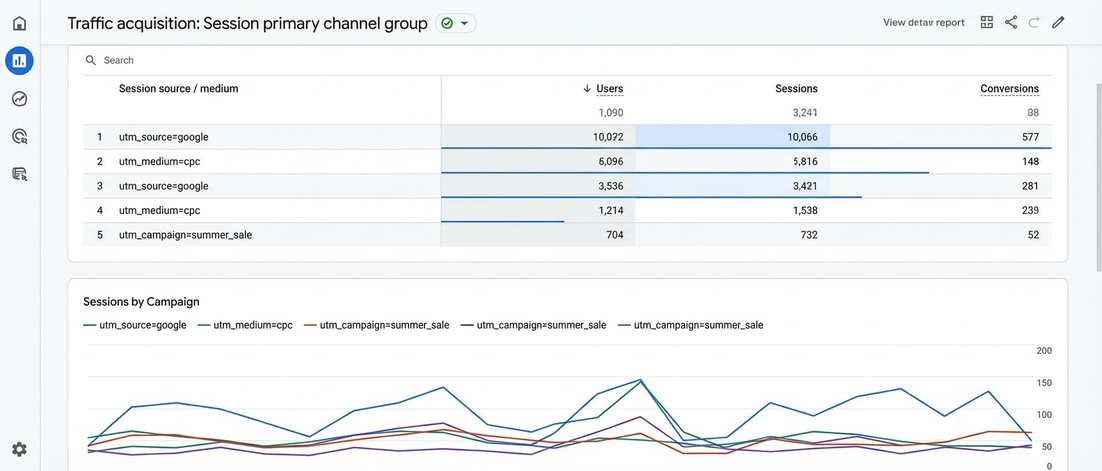
If this sounds familiar, you are not alone
- Your UTM data appears under (not set) instead of the actual source/medium
- You see traffic in GA4 but no conversion data linked to specific campaigns
- Your acquisition reports show organic search for traffic you know is paid
- GA4 groups similar sources together, making your clean UTM data look messy
- Session-based attribution means the same user appears multiple times with different sources
GA4 UTM tracking is not broken. It just works differently than Universal Analytics.
How GA4 actually handles UTM data
1. GA4 uses different attribution models by default
Universal Analytics used last-click attribution for acquisition reports. GA4 uses data-driven attribution and shows multiple models. This means your GA4 traffic reports will never match your UA reports even with identical UTM parameters.
Do not compare GA4 and UA numbers. They use different models by design.
2. GA4 automatically groups similar sources
Google, google, and GOOGLE all become google / organic in GA4 reports. Facebook, fb, and facebook become facebook / social. This automatic grouping can make your careful UTM naming look like it does not matter.
Your careful source naming still matters for precise analysis, but GA4 default reports will simplify it.
3. (not set) means GA4 did not receive the parameters
When you see (not set) in your source/medium reports, GA4 did not receive the UTM parameters. This usually happens because of URL parameters that get stripped, redirect issues, or bot traffic.
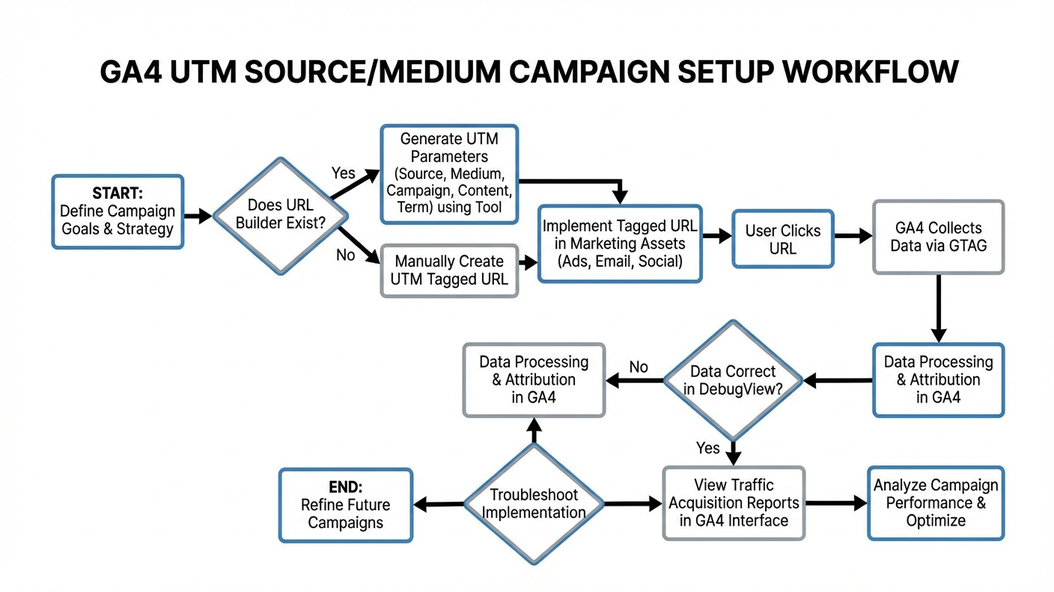
Test your links. Use GA4 DebugView to verify parameters are arriving.
4. GA4 uses event-based tracking, not session-based
In UA, a session had one source. In GA4, events within a session can have different sources. This creates more accurate attribution but can look confusing if you are used to UA.
GA4 shows you the full journey, not just the last touch.
The real cost is not the setup time - it is trusting the wrong data
- You think a campaign is not working because GA4 attribution model shows it differently
- You miss the true value of campaigns that GA4 groups or filters
- You optimize based on GA4 default views that do not match your business logic
- Your team loses confidence in GA4 because the numbers never make sense
If you do not understand how GA4 processes UTM data, you will make decisions based on incorrect conclusions.
What working GA4 UTM tracking looks like
- All UTM parameters appear correctly in your reports
- Campaign data connects to conversions and revenue
- You understand why GA4 shows what it shows
- Your GA4 data matches your business reality
When GA4 UTM tracking works, you see exactly which campaigns drive valuable actions.
Why more UTM parameters do not fix GA4 issues
This is exactly why we built UTM Grabber
UTM Grabber ensures your UTM data appears correctly in GA4 - and helps you understand what you are seeing.
- Validation that your parameters will appear correctly in GA4
- Tools to debug GA4 attribution issues
- Consistent naming that survives GA4 automatic grouping
- Setup guidance specifically for GA4 quirks
UTM Grabber is built for teams struggling with GA4 UTM data
- Teams transitioning from Universal Analytics to GA4
- Marketers who see (not set) in their acquisition reports
- Anyone whose GA4 data does not match their expectations
- Teams trying to understand GA4 attribution
If your GA4 reports do not show your UTM data correctly, this is for you.