
How to Track UTM Parameters in Forminator Forms
Your Forminator form works. The lead comes in. The email notification fires.
But the part that matters for marketing is missing: which campaign, ad, keyword, or source created the submission?
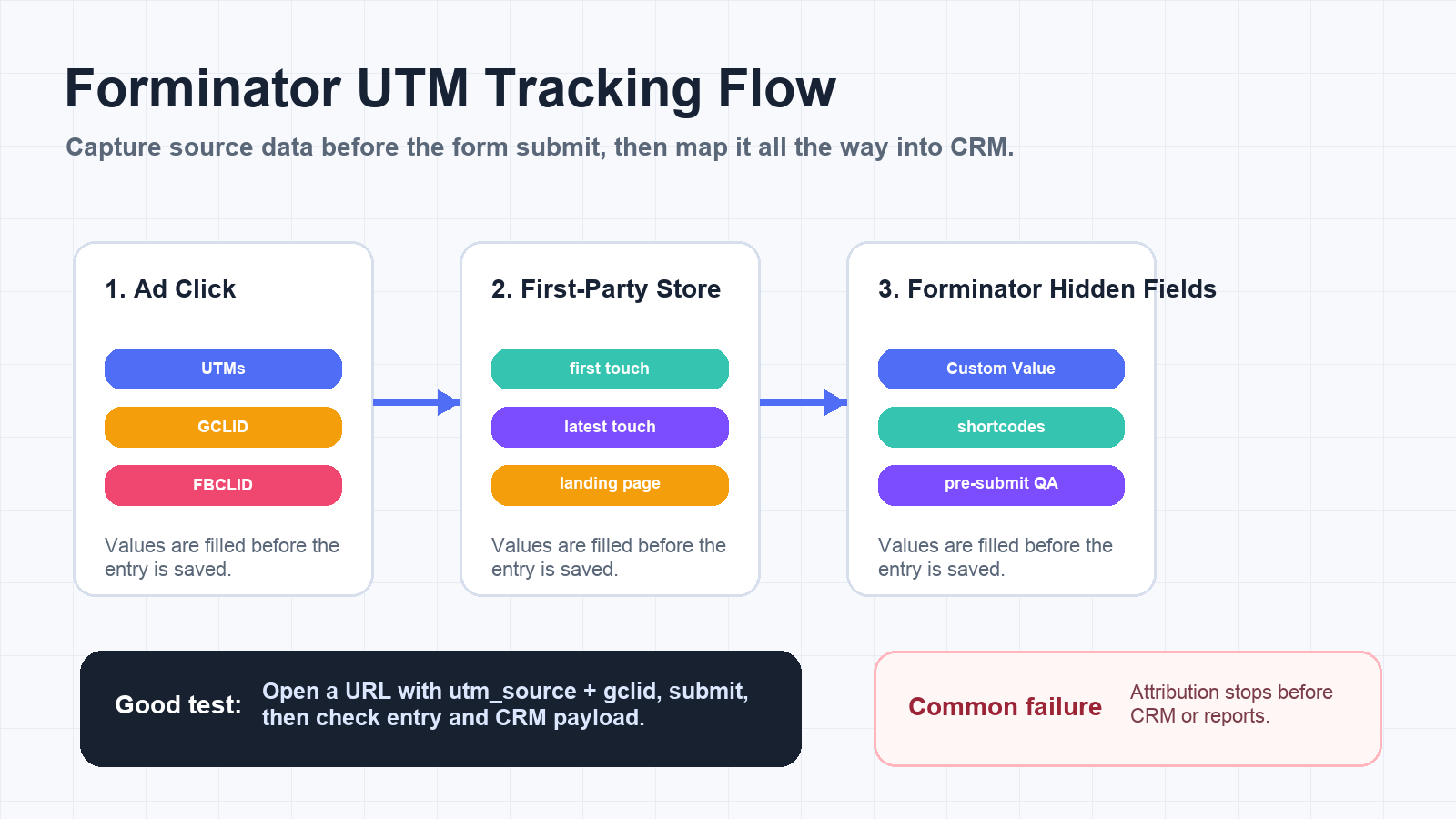
If you searched for Forminator UTM tracking, this is probably the problem
- The URL has
utm_source,utm_campaign,gclid, orfbclid, but the Forminator submission is blank. - Forminator hidden fields exist, but they do not reach HubSpot, Google Sheets, Zapier, Make, or your CRM.
- AJAX submission works, but source fields disappear intermittently.
- A cache, redirect, popup, or multi-step path removes the original query string before submit.
- Paid traffic creates leads, but reporting still says "direct", "unknown", or "website".
The fix is to make Forminator hidden fields part of a complete attribution handoff, not just a cosmetic form setting.
The short answer
To track UTM parameters in Forminator Forms, create hidden fields for each attribution value, set those hidden fields to use custom values or UTM Grabber shortcodes, then verify the same fields appear in the Forminator entry and every downstream integration.
At minimum, capture:
utm_source,utm_medium,utm_campaign,utm_term,utm_contentgclid,gbraid,wbraid,fbclid,msclkid- Landing page, referrer, and current page URL
- First touch and latest touch values
- CRM-ready fields such as lead source, source detail, and campaign name
A hidden field is only useful if the value survives the full journey from landing page to Forminator entry to CRM.
Why Forminator UTM tracking breaks
Forminator can store hidden values, and WPMU DEV's documentation describes hidden fields as fields that are not visible on the front end but can record data on the form entry. That makes them useful for attribution.
The problem is timing.
Most attribution failures happen because the visitor does not submit the form on the first page load. They click an ad, land with UTMs, browse another page, come back later, or submit through a popup. By then, the original query string may be gone.
That is why the better pattern is:
- Capture campaign and click ID values as soon as the visitor arrives.
- Store them first-party so they survive page navigation.
- Populate Forminator hidden fields before submit.
- Map the same fields into the next system.
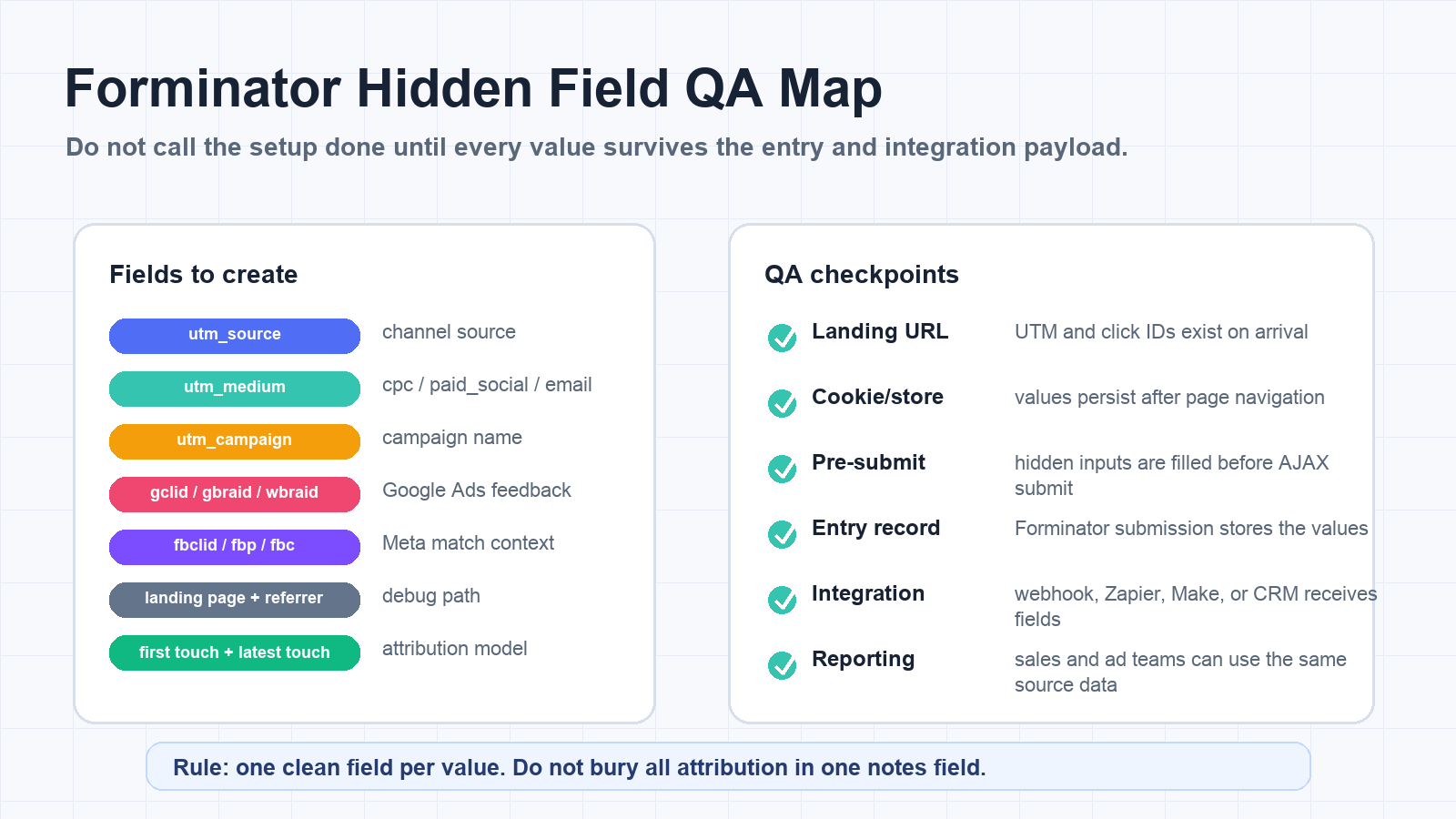
The Forminator hidden fields to create
Create one field per value. Do not put all source data into one notes field.
| Field group | Recommended fields | Why it matters |
|---|---|---|
| Standard UTMs | utm_source, utm_medium, utm_campaign, utm_term, utm_content | Shows channel, campaign, keyword, and creative. |
| Google Ads IDs | gclid, gbraid, wbraid | Keeps Google Ads offline conversion and enhanced conversion options open. |
| Meta IDs | fbclid, fbc, fbp | Helps connect leads to Meta click and browser context when allowed. |
| Page context | Landing page, current page, referrer | Helps debug where the lead came from and where the form was submitted. |
| Touch model | First touch source, latest touch source, all-touch path | Prevents last-click-only reporting from hiding the original acquisition source. |
| CRM fields | Lead source, source detail, campaign name | Makes attribution visible to sales, ops, and reporting teams. |
Clean attribution starts with clean field names.
How to set up Forminator UTM tracking
1. Add hidden fields in Forminator
In Forminator, add hidden fields for every UTM parameter and click ID you want to preserve. Give each field a clear internal label so your team can map it later.
Good field names look like:
utm_sourceutm_mediumutm_campaigngclidfbclidlanding_pagefirst_utm_sourcelatest_utm_source
Weak field names look like:
- Tracking
- Source info
- Data
- Campaign stuff
Those names become painful when you map the form into a CRM or webhook.
2. Use custom values or UTM Grabber shortcodes
The UTM Grabber Forminator documentation shows the core implementation pattern: add hidden fields, set the default value to Custom Value, then use the shortcode equivalent for each attribution field.
That lets the Forminator submission receive values that UTM Grabber has already captured and stored.
This is stronger than relying only on the current URL because the current URL often no longer has the original campaign values when the user submits.
3. Publish and test the Forminator shortcode
Forminator forms can be embedded through shortcodes or inserted into WordPress content. After publishing, test the actual page where the form appears, not only the form builder preview.
Use a test URL like:
https://example.com/contact/?utm_source=google&utm_medium=cpc&utm_campaign=forminator_test&gclid=test123&fbclid=test456
Submit the form and check:
- The hidden fields before submission
- The Forminator submission entry
- The admin email notification
- The webhook payload
- Zapier or Make task history
- CRM contact, lead, deal, or opportunity fields
If the value appears in Forminator but not in the CRM, the problem is not capture. It is mapping.
Map Forminator data into the tools that matter
WPMU DEV's Forminator documentation lists integrations such as webhooks, Mailchimp, Campaign Monitor, ActiveCampaign, HubSpot, Google Sheets, AWeber, Slack, and Trello. For attribution, the important question is simple:
Does the integration receive the same hidden fields that Forminator saved?
Check every destination:
- HubSpot contact properties
- Salesforce Lead fields
- GoHighLevel custom fields
- Pipedrive person or deal fields
- Google Sheets columns
- Zapier action fields
- Make module mappings
- Webhook JSON payload
- Slack or email notifications
The campaign data should be visible where sales and reporting teams actually work.
Forminator, AJAX submission, caching, and GTM
Forminator can use AJAX-style submission behavior, and WordPress sites often run caching, optimization, consent, and tag manager layers.
That combination can create timing bugs:
- Tracking script runs after the form becomes ready.
- Hidden fields are filled after the submit event.
- A cache serves a version of the form without the latest values.
- GTM fires on submit, but the form data is not available in the expected event.
- Consent settings suppress storage or ad identifiers.
QA the actual production page with your normal plugins enabled. Then isolate issues by testing:
- Cache on vs cache off
- AJAX submit vs non-AJAX behavior if available
- Consent accepted vs denied
- First page submit vs second page submit
- Direct form page vs popup or embedded placement
A Forminator setup is not done until it works under the same conditions your paid traffic sees.
Google Ads and Meta Ads need click IDs too
UTMs explain the campaign. Click IDs help platforms connect conversions back to ad interactions.
For Google Ads, store gclid, gbraid, and wbraid when available. Google's offline conversion guidance emphasizes storing click identifiers with lead records when you plan to import offline conversions later.
For Meta, store fbclid, fbp, and fbc where available and permitted. If you later send server-side events or conversion feedback, these identifiers can help matching and debugging.
If your Forminator form only captures UTMs, you can report campaign names. If it also captures click IDs, you can build better ad platform feedback loops.
First touch vs latest touch for Forminator leads
Latest touch tells you what the visitor did right before submitting.
First touch tells you what introduced the visitor in the first place.
For lead generation, store both:
- First touch source
- First touch medium
- First touch campaign
- Latest touch source
- Latest touch medium
- Latest touch campaign
This matters when someone first arrives from Meta Ads, returns from branded Google search, and finally submits through a Forminator contact form after reading several pages.
Troubleshooting checklist
Use this before calling the setup done:
- Visit the page with test UTMs and click IDs.
- Confirm UTM Grabber captures the values.
- Confirm Forminator hidden fields have custom values or shortcode values.
- Submit the form from the first page.
- Submit again after navigating to another page.
- Check the Forminator entry record.
- Check the webhook, Zapier, Make, Google Sheets, or CRM payload.
- Confirm the sales team can see source data.
- Test with cache and consent behavior enabled.
- Log raw values during QA so you can debug mismatches.
Common mistakes
Mistake 1: Only testing the form builder preview
The production page may include different scripts, cache behavior, GTM events, consent rules, or popup wrappers.
Mistake 2: Mapping only the email notification
Email notifications are not enough. The attribution data has to land in the CRM or reporting system.
Mistake 3: Capturing only utm_source
utm_source=google is not attribution. You also need medium, campaign, click ID, page context, and touch model.
Mistake 4: Forgetting click IDs
If you want Google Ads offline conversions, enhanced conversions, or Meta conversion feedback later, store click IDs at lead creation.
Mistake 5: Not keeping field names consistent
Different forms using different names for the same value will break reporting later.
Where UTM Grabber fits
UTM Grabber captures the source data early, stores it first-party, and makes it available to Forminator hidden fields so the submission and CRM record keep the campaign context.
- Capture first touch and latest touch UTMs.
- Store Google, Meta, and Microsoft click IDs.
- Fill Forminator hidden fields with shortcode-based values.
- Send attribution into webhooks, Zapier, Make, HubSpot, Salesforce, GHL, and reports.
- Keep lead source data useful after navigation, redirects, caching, and delayed submission.
Sources checked:
- UTM Grabber Forminator Form UTM Integration documentation
- WPMU DEV Forminator usage documentation
- Google Ads Help: import conversions from clicks
Capture UTMs, click IDs, landing pages, and CRM-ready attribution fields before the form submission is created.