
How to Automate Google Ads Offline Conversions from Google Sheets
Google Sheets is a supported way to send offline conversions to Google Ads. The problem is not the spreadsheet. The problem is waiting for someone to find the right lead, copy the click ID, enter the value, fix the timestamp, and upload the file days later.
Google's bidding algorithm can only learn from the conversion feedback it receives. When qualified leads, closed deals, booked appointments, and revenue arrive late or inconsistently, Smart Bidding is optimizing with an incomplete picture.
The stronger setup is an automated chain: capture the Google click ID when the visitor lands, preserve it through the form and CRM journey, trigger the correct lifecycle conversion, retain the original event time, and send the record through Google Ads Data Manager or an API workflow on a predictable schedule.
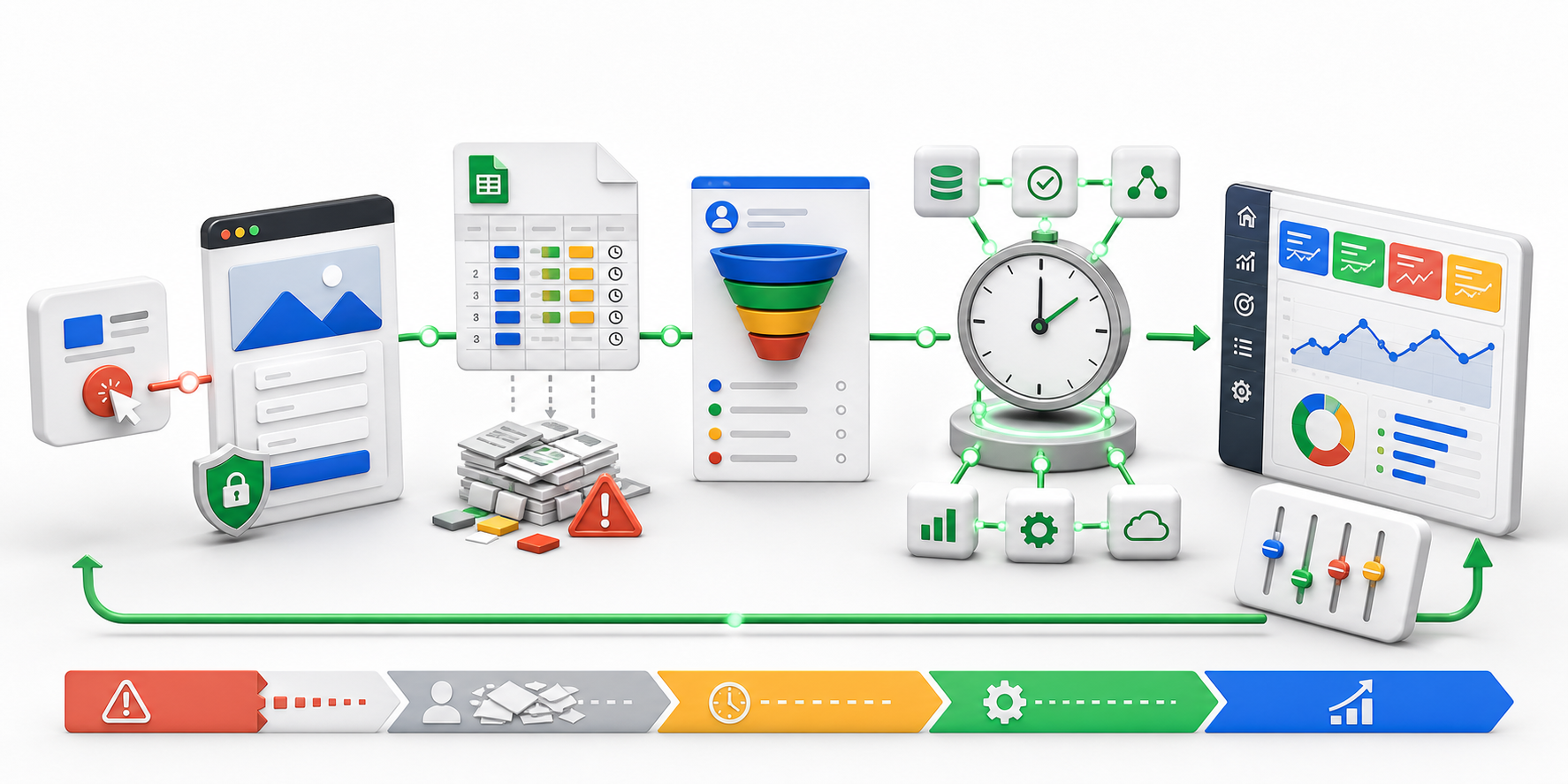
Why businesses search for Google Ads offline conversion automation
- Google Ads reports form fills, but it cannot distinguish a qualified lead from a poor lead.
- Sales closes deals in a CRM, but revenue never returns to the campaign that created it.
- A team member uploads a Google Sheet weekly, so Smart Bidding learns from stale outcomes.
gclid,gbraid, orwbraiddisappears before the lead reaches the CRM.- Conversion times are entered in the wrong time zone or replaced with the upload time.
- Duplicate rows, changed column names, and rejected records silently reduce conversion coverage.
- Target CPA or Target ROAS is optimizing toward an easy top-of-funnel action instead of business value.
These are not spreadsheet problems. They are broken feedback-loop problems.
Is Google Sheets still a valid offline conversion method?
Yes. Google Ads Data Manager supports a direct Google Sheets connection for offline conversion imports and Enhanced Conversions for Leads. Google also states that a CRM is not mandatory. A properly structured spreadsheet can be the data source.
But Google makes another recommendation that matters more: automated uploads best utilize Smart Bidding by keeping conversion data up to date, and daily offline uploads are optimal.
That distinction changes the implementation question.
- Supported: A person updates a spreadsheet and uploads it occasionally.
- Better: A system populates the spreadsheet and Data Manager imports it daily.
- Strongest for advanced teams: A CRM, warehouse, server, or event service sends normalized conversion records through an automated Data Manager API workflow with logging and retry handling.
The spreadsheet does not need to disappear. Manual handling needs to disappear from the critical path.
Why offline conversion timing matters to Smart Bidding
There are two different clocks in Google Ads offline conversion tracking. Both need to be correct.
1. The conversion event time
This is when the real business outcome happened: when the lead became qualified, the appointment was attended, the application was approved, or the sale closed.
The payload should preserve that original timestamp and its time zone. Do not replace it with the time a row was added to Google Sheets or the time the upload job ran.
Google Data Manager expects well-formed date and time values. Ambiguous dates and missing time zones can cause incorrect imports or rejected rows. API-based event ingestion uses an RFC 3339 event timestamp.
2. The reporting delay
This is the time between the real conversion and the moment Google receives it.
Google's value-based bidding guidance says to feed conversion data as soon as it becomes available, calls daily offline uploads optimal, and recommends shorter conversion delays of less than seven days. Delayed backfills can affect Smart Bidding because the model spent that period making decisions without the outcome.
The goal is not to invent an earlier sale date. The goal is to send the true event promptly.
Ad click -> Capture click ID -> Lead enters CRM -> Lifecycle milestone happens at 2:14 PM -> Queue record with 2:14 PM event time -> Automated import -> Google Ads diagnostics -> Smart Bidding feedback
How often should you upload offline conversions to Google Ads?
Google recommends uploading at least daily. If daily is impossible, use a consistent regular schedule. Google Ads Data Manager connections can be run manually, daily, or weekly, with daily as the maximum scheduled frequency in the interface.
That creates three practical service levels:
| Workflow | Data freshness | Operational risk | Best fit |
|---|---|---|---|
| Manual Google Sheet upload | Depends on a person | High risk of delay, copy errors, missed days, and inconsistent columns | Temporary setup or very low volume |
| Automatically populated Sheet plus daily Data Manager schedule | Daily | Moderate risk if the source job or mapping fails without alerts | Most small and midsize lead-generation teams |
| CRM, warehouse, or server event pipeline through an API | Frequent and controlled | Lower manual risk, but requires engineering, idempotency, and monitoring | High spend, high volume, complex sales cycles |
A scheduled import is only automated when the source is also automated. If an employee still has to populate the sheet, the workflow remains manual upstream.
Enhanced Conversions for Leads is now the preferred direction
Standard offline conversion import often relies on a Google click identifier such as gclid. Enhanced Conversions for Leads can also use normalized and hashed first-party customer data, such as email or phone, to improve matching.
Google highly recommends upgrading existing offline conversion imports to Enhanced Conversions for Leads through Data Manager. Google also recommends including GCLIDs whenever possible, even when customer-provided data is available.
The practical matching stack is:
- Capture the ad identifier:
gclid,gbraid, orwbraidwhen available. - Capture eligible first-party lead data: email, phone, or address with the required normalization, hashing, notice, and consent.
- Preserve a stable business identifier: lead ID, order ID, opportunity ID, or transaction ID.
- Send the correct lifecycle event: not every CRM status change deserves to be a primary bidding conversion.
This makes the conversion signal more durable than depending on one identifier alone.
What data should an automated offline conversion record contain?
The exact schema depends on the import method and conversion type, but a reliable system usually maintains the following source fields:
| Field | Why it matters |
|---|---|
| Conversion action or event name | Tells Google whether this is a qualified lead, booked appointment, closed sale, or another goal. |
| Original conversion timestamp and time zone | Places the outcome at the time it actually occurred. |
gclid, gbraid, or wbraid | Connects the offline outcome to the Google ad interaction when available. |
| Hashed email or phone | Adds first-party matching for Enhanced Conversions for Leads when eligible. |
| Lead, order, opportunity, or transaction ID | Supports deduplication, reconciliation, and conversion adjustments. |
| Conversion value and currency | Gives value-based bidding the business outcome, not just a conversion count. |
| Lifecycle source and status | Explains which CRM transition created the conversion event. |
| Consent and policy state | Helps the source system determine whether a record is eligible to be sent. |
| Import status, error, and retry count | Makes missing conversions visible instead of silently dropping them. |
The import payload does not need every internal CRM field. It needs the smallest accurate record that lets Google match, value, deduplicate, and process the conversion.
How HandL UTM Grabber supports offline conversion automation
HandL UTM Grabber solves the earliest and most frequently overlooked part of the workflow: capturing attribution before it disappears and keeping it attached to the lead or order.
UTM Grabber can capture GCLID by default and can be configured to preserve additional parameters such as gbraid and wbraid. It also retains UTMs, landing-page context, referrer data, first-touch attribution, and latest-touch attribution across the customer journey.
Those values can then populate:
- WordPress form hidden fields
- WooCommerce order metadata
- CRM contact, lead, deal, or opportunity properties
- Webhook payloads
- Zapier or Make automation steps
- An automatically maintained Google Sheet
- A database, S3 object, HTTP source, or custom Data Manager API pipeline
UTM Grabber is the first-party attribution capture and persistence layer. Google Ads Data Manager or the Data Manager API remains the import layer.
That separation is useful. It lets your marketing team change forms, CRMs, automation tools, or upload methods without rebuilding the landing-page capture logic every time.
Read the implementation guides for Google Ads tracking parameters and capturing GCLID, WBRAID, and GBRAID.
A practical automated Google Sheets architecture
You do not need to replace every tool at once. A Google Sheet can remain a transparent staging layer while automation handles the movement.
Step 1: Capture attribution on the landing page
Enable Google Ads auto-tagging and capture the available click identifier as soon as the visitor arrives. Store it first-party so it can survive navigation, multi-step forms, aggressive caching, and a later return visit where permitted.
Also preserve useful campaign context such as:
utm_sourceutm_mediumutm_campaignutm_contentutm_term- landing page and referrer
- first touch and latest touch
UTMs help humans analyze the journey. Click IDs and eligible hashed user data help Google match the conversion.
Step 2: Send the attribution into the form and CRM
Hidden fields must be mapped into the actual submission payload. The CRM must then map those values into stable properties on the lead, contact, opportunity, or deal.
Test the complete route:
Landing page -> Form hidden fields -> Form submission -> Automation -> CRM property -> Deal record
If the gclid is visible in the browser but absent from the CRM, no spreadsheet formula can recover it later.
Step 3: Define meaningful lifecycle conversions
Do not upload every CRM status as a primary conversion. Create a short conversion ladder that reflects business value.
For example:
Lead Submitted: useful for measurement, often secondary once deeper data is availableMarketing Qualified Lead: confirms basic fitSales Qualified Lead: confirms sales acceptance or intentAppointment Attended: stronger than a booking for businesses with no-show riskClosed Won: actual revenue with value and currency
If the final sale takes months and volume is low, Google advises considering an earlier qualified stage with a shorter conversion delay. The right optimization event is the deepest reliable signal that occurs often enough and soon enough for the bidding strategy to learn.
Step 4: Write one canonical conversion row
When the selected CRM transition occurs, automation should write a normalized row to the Sheet or event queue. The row should contain the original milestone time, not the automation execution time.
Use a stable key such as:
conversion_action + opportunity_id + milestone_version
That key helps prevent two CRM workflows, webhook retries, or spreadsheet syncs from sending the same business event twice.
Step 5: Schedule the Data Manager connection
Connect the Google Sheet in Google Ads Data Manager, map the columns, apply transformations carefully, and schedule the connection daily.
Refresh the source before the scheduled import. A simple pattern is:
- Source automation completes.
- Validation checks required fields.
- Sheet is updated.
- Data Manager runs after the refresh window.
- A monitoring job checks import diagnostics.
Step 6: Reconcile accepted and rejected conversions
Automation is not complete without observability. Track:
- rows created
- rows eligible for upload
- rows accepted
- rows rejected
- rejection reason
- retries attempted
- unmatched click IDs
- conversion action totals
- conversion value totals
Compare the source system, Google Sheet, Data Manager diagnostics, and Google Ads reporting. Google attributes an imported conversion to the original click or impression time, so do not expect it to appear under the upload date.
Common offline conversion errors and how automation fixes them
Click ID is missing from the CRM
Cause: The landing-page parameter was never persisted, the form omitted its hidden field, an iframe isolated the form, or a CRM mapping dropped the value.
Fix: Capture on arrival, persist first-party, test each field mapping, and log the identifier at every handoff.
Conversion happened before the click
Cause: Time-zone conversion is wrong, the source used the record creation time incorrectly, or the date format was ambiguous.
Fix: Store timestamps in a canonical format with an explicit time zone and validate that the conversion follows the ad interaction.
The click is too recent
Google documents that click-based imports may fail when the click occurred too recently and recommends waiting about six hours before retrying.
Fix: Put the record in a retry queue. Keep the original conversion time unchanged and retry after the safe window.
Conversions are uploaded too late
Click-based imports have eligibility windows, and Enhanced Conversions for Leads has its own limits. Waiting weeks also gives Smart Bidding stale data even when the row still imports successfully.
Fix: Upload daily or more frequently through an appropriate API workflow. Alert when queue age exceeds your service-level target.
Duplicate conversions appear
Cause: A webhook retries, two automations listen to the same CRM transition, or an operator re-uploads an overlapping file.
Fix: Use a stable transaction or business event ID, idempotent processing, and a sent-event ledger.
Google receives conversions but bidding quality does not improve
Cause: The event may be too shallow, too rare, delayed, low-value, or inconsistently defined. The campaign may also be optimizing before enough conversion cycles have passed.
Fix: Audit the conversion hierarchy, volume, delay, value accuracy, primary/secondary goal settings, and bidding strategy. Do not treat import success as proof that the selected business signal is useful.
Manual uploads versus an automated feedback loop
What a reliable Google Ads offline conversion system looks like
- Every eligible ad click is captured early, including GCLID and privacy-aware identifiers when available.
- Attribution survives the full journey from landing page to form, CRM, opportunity, and revenue event.
- Lifecycle stages have written definitions so sales and marketing send the same signal every time.
- The original event timestamp and time zone are preserved across uploads and retries.
- Conversion value and currency reflect business reality, especially for value-based bidding.
- A stable business ID prevents duplicates and supports reconciliation or adjustments.
- The source refresh and Google import run on a predictable schedule without manual copy and paste.
- Rejected and unmatched rows create alerts, not silent data loss.
- Customer data is normalized, hashed, minimized, and used only when policy and consent permit it.
- Source totals reconcile with imported totals before the team changes campaign budgets.
The objective is not merely to make Google Ads show more conversions. It is to give the algorithm timely, accurate business outcomes that can be traced back to their source.
Google Ads offline conversion automation checklist
- Turn on Google Ads auto-tagging.
- Capture
gclidimmediately and addgbraidandwbraidwhere your traffic requires them. - Preserve UTMs, first touch, latest touch, landing page, and referrer for internal analysis.
- Map attribution fields through the form, automation, and CRM.
- Define a small set of meaningful lifecycle conversion actions.
- Record the actual conversion time with an explicit time zone.
- Add a stable lead, order, opportunity, or transaction ID.
- Include conversion value and currency when the event has a defensible value.
- Configure eligible hashed first-party identifiers for Enhanced Conversions for Leads.
- Automate the Google Sheet or source table population.
- Schedule Data Manager daily, or design a monitored API pipeline when frequency and scale require it.
- Retry click-too-recent records without changing the original event time.
- Log deduplication keys, upload status, errors, and retry counts.
- Reconcile CRM outcomes, source rows, accepted imports, and Google Ads totals.
- Run the pipeline for one or two conversion cycles before making aggressive bidding changes.
Frequently asked questions
Can Google Ads import offline conversions from Google Sheets?
Yes. Google Ads Data Manager supports a direct Google Sheets connection. You can map fields, transform values, and schedule the connection. The Sheet should be treated as a governed data source, not an informal document that people edit without validation.
Should Google Ads offline conversions be uploaded daily?
Google recommends at least daily uploads and says daily offline uploads are optimal for value-based bidding. A regular schedule is important because Smart Bidding needs current outcomes.
Does upload time replace conversion time?
No. Send the timestamp of the real conversion event. Google reports attributed conversions according to the original ad interaction, not simply under the upload date.
Is GCLID still important with Enhanced Conversions for Leads?
Yes. Google recommends including GCLID whenever possible. Enhanced Conversions for Leads can add eligible hashed first-party data, creating another matching path rather than making click-ID capture irrelevant.
Can UTM parameters replace GCLID?
No. UTMs describe campaign context for your analytics and CRM. GCLID, GBRAID, WBRAID, and eligible hashed user data are used for Google matching. Preserve both because they answer different questions.
Can HandL UTM Grabber upload conversions directly to Google Ads?
UTM Grabber's core role is to capture and persist the attribution data that an offline conversion pipeline needs. It can populate forms, orders, CRMs, webhooks, automation tools, and Google Sheets. Google Ads Data Manager or a Data Manager API implementation performs the final import.
What if the sale happens months after the click?
Keep tracking the sale for measurement, but review Google's current eligibility windows and consider optimizing campaigns toward an earlier qualified milestone. A deeper event is not automatically better when it arrives too late or too rarely for the bidding model to learn.
How do I prevent duplicate offline conversions?
Use a stable transaction or business event ID, make the workflow idempotent, and keep a ledger of records already sent. Retries should reuse the same event identity and original timestamp.
Build a conversion pipeline, not an upload ritual
Manual Google Sheets uploads can prove the concept. They should not remain the operating model for a growing Google Ads account.
A good offline conversion system closes the loop while the signal is still useful: UTM Grabber captures the click and campaign journey, the CRM identifies the meaningful business outcome, automation preserves the event time and value, and Google receives a clean record on a consistent schedule.
That is how you move from optimizing for cheap form fills to optimizing for qualified pipeline and real revenue.
Keep Google click and campaign data attached to every lead
Capture GCLID, UTMs, first touch, latest touch, and journey context before your offline conversion workflow needs them.
Sources checked
- Google Ads Help: About enhanced conversions for leads
- Google Ads Help: Offline conversion import FAQ
- Google Ads Help: Value-based bidding with offline conversions
- Google Ads Help: How conversion cycles affect Smart Bidding
- Google Ads Data Manager: Connect Google Sheets
- Google Ads Data Manager: Schedule a data connection
- Google Ads Data Manager: Format date and time fields
- Google Ads Help: Troubleshoot offline conversion import errors
- Google for Developers: Data Manager API overview
- Google for Developers: Data Manager event ingestion fields
- Google for Developers: Format and hash user data
- UTM Grabber documentation: Google Ads tracking
- UTM Grabber documentation: Track GCLID, WBRAID, and GBRAID